 InCue
InCueChapter 4 of 23 · Updated 22 October 2026
Business & account settings
On this page
Edit the business profile
Location: Merchant Account > Shop Profile. Desktop users can also reach account tools from the sidebar.
- Open Shop Profile and choose Edit Profile.
- Check Shop name and Owner name. These identify the business and owner; do not put customer information here.
- Check the business category/type, GST number if applicable, address, pincode, city and state.
- Use Get current location at the actual premises, or enter advanced latitude/longitude carefully when provided.
- Save the edit using the form's save action. Reopen the profile and verify the saved values.
Expected result: subsequent business-facing/customer views use the updated profile. Exact GPS coordinates are needed for location-restricted QR generation. Pincode-derived city/state are not exact premises coordinates.
Registered phone and verified contact fields are account identifiers. Do not assume changing visible contact text also changes the OTP login identity. Ask support if a registered number must be changed. A self-service logo-upload procedure was not verified in this screen; do not promise it from marketing images.
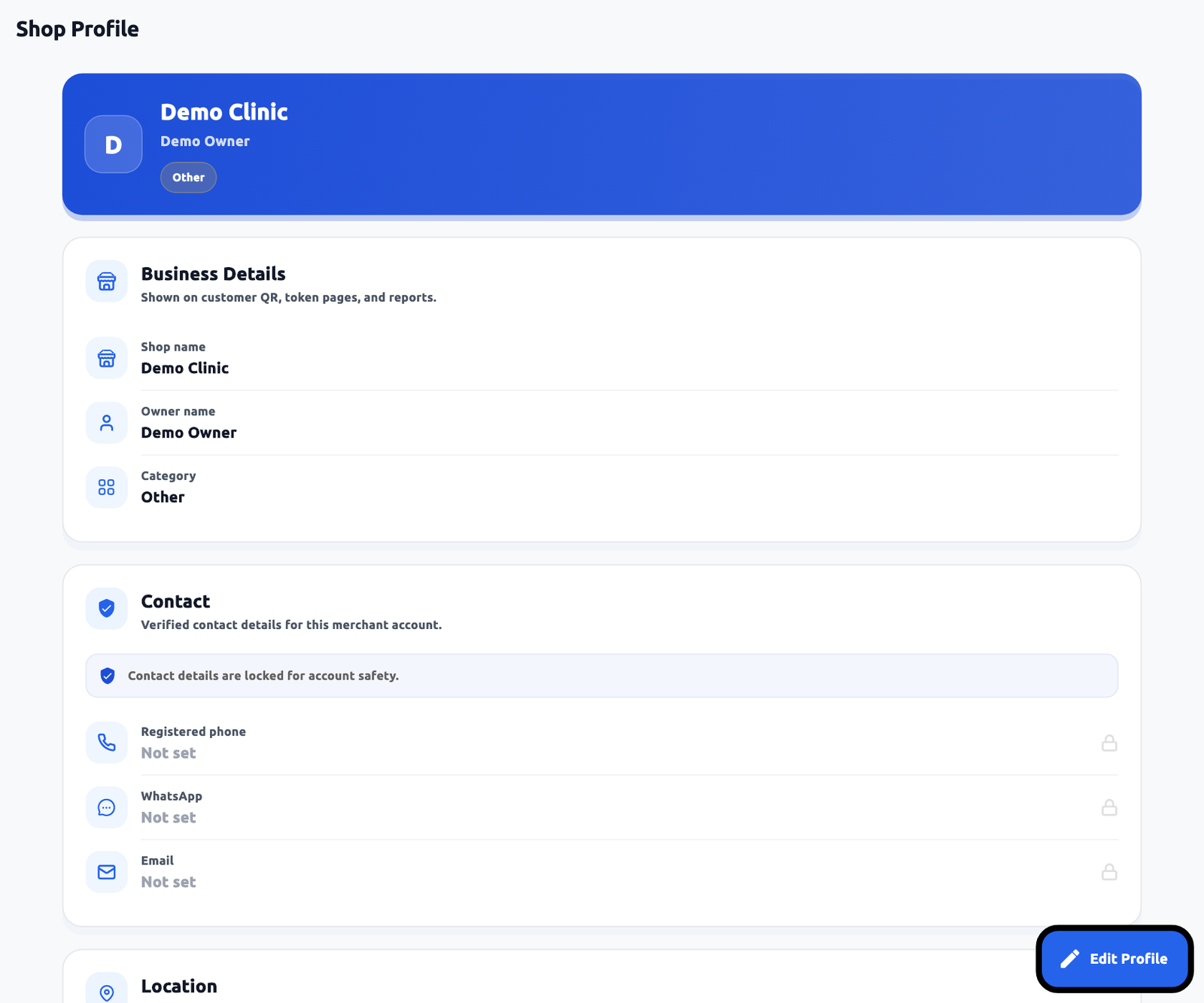 Business profile. Actual application interface with synthetic example data.1.Edit Profile opens the editable business details.2.Registered contact details are locked in this view.
Save settings safely
Location: Merchant Account > Settings or desktop Settings.
Open the section, change its values and press Save changes. No changes means the form has no unsaved changes. Discard changes returns to the previously loaded configuration. Refresh/reload first if another owner session has changed the same settings.
Business hours support selected working days, common hours or individual daily hours and break windows. Defaults in the inspected model are all seven days, 09:00-21:00, with no breaks and India time. Your saved account may already be different. Open time must be before close time; breaks must have valid start/end times inside the work schedule. This is not a verified overnight-shift editor.
Accept walk-ins controls token intake. It is not identical to pausing service or signing out a counter. Configure actual opening hours, then decide whether intake should be accepted now. Authenticated staff may be permitted to issue outside some schedule checks; QR availability still follows public intake rules.
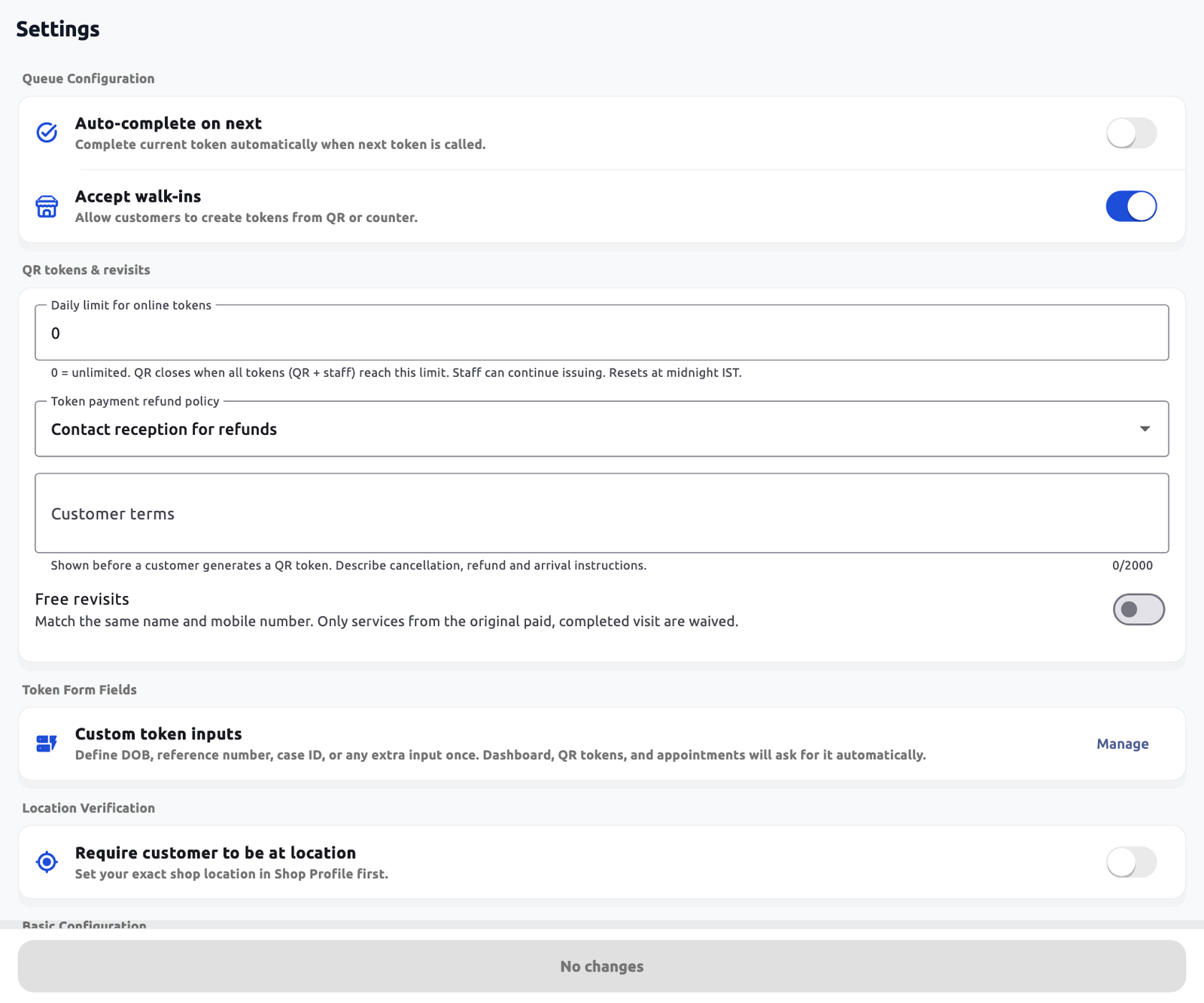 Merchant settings. Actual application interface with synthetic example data.1.Queue behaviour switches.2.Daily public-token cap.3.Manage the owner-defined fields.
The complete field-by-field reference, including limits, defaults and effects, is in Chapter 17 and the separate Settings Reference file.