 InCue
InCueChapter 8 of 23 · Updated 22 October 2026
TV display & announcements
On this page
TV Setup Quick Guide
- Connect the TV, monitor browser or supported Android Display device to reliable internet. Keep the reception and display associated with the same business.
- Open display.incue.in or the current Display app. Leave its on-screen pairing QR visible.
- On the owner's Merchant app, open Account > Display Devices > Link Display (desktop Display also opens the device area).
- On Scan TV QR Code, allow the merchant phone camera and point it at the QR displayed on the TV. Wait for Linking Display... and confirmation. Verify that the business name on the TV is yours and that the device appears in Display Devices. A manual short-code entry field was not verified; if the owner's browser has no usable camera, use a supported merchant phone/app or contact support.
- Open the display settings control on Display Devices to reach Display Settings. Choose layout, visible fields and voice behaviour, then save.
- Press remote OK/Enter/Select/Space or tap Enable sound when required. Check TV mute, speaker routing and volume.
- Call a sample token and verify the number/status and sound. Start and complete it to verify the selected announcement mode.
- Enable full screen using the browser/device's own control. Prevent the TV/browser from sleeping during business hours.
A merchant account needs available display entitlement/seat capacity. Linking uses owner authorization; a staff queue account is not a display administrator. Unlink a screen from Display Devices if it is no longer yours, then pair again intentionally. Do not clear all browser storage as the first troubleshooting step: it can remove saved pairing.
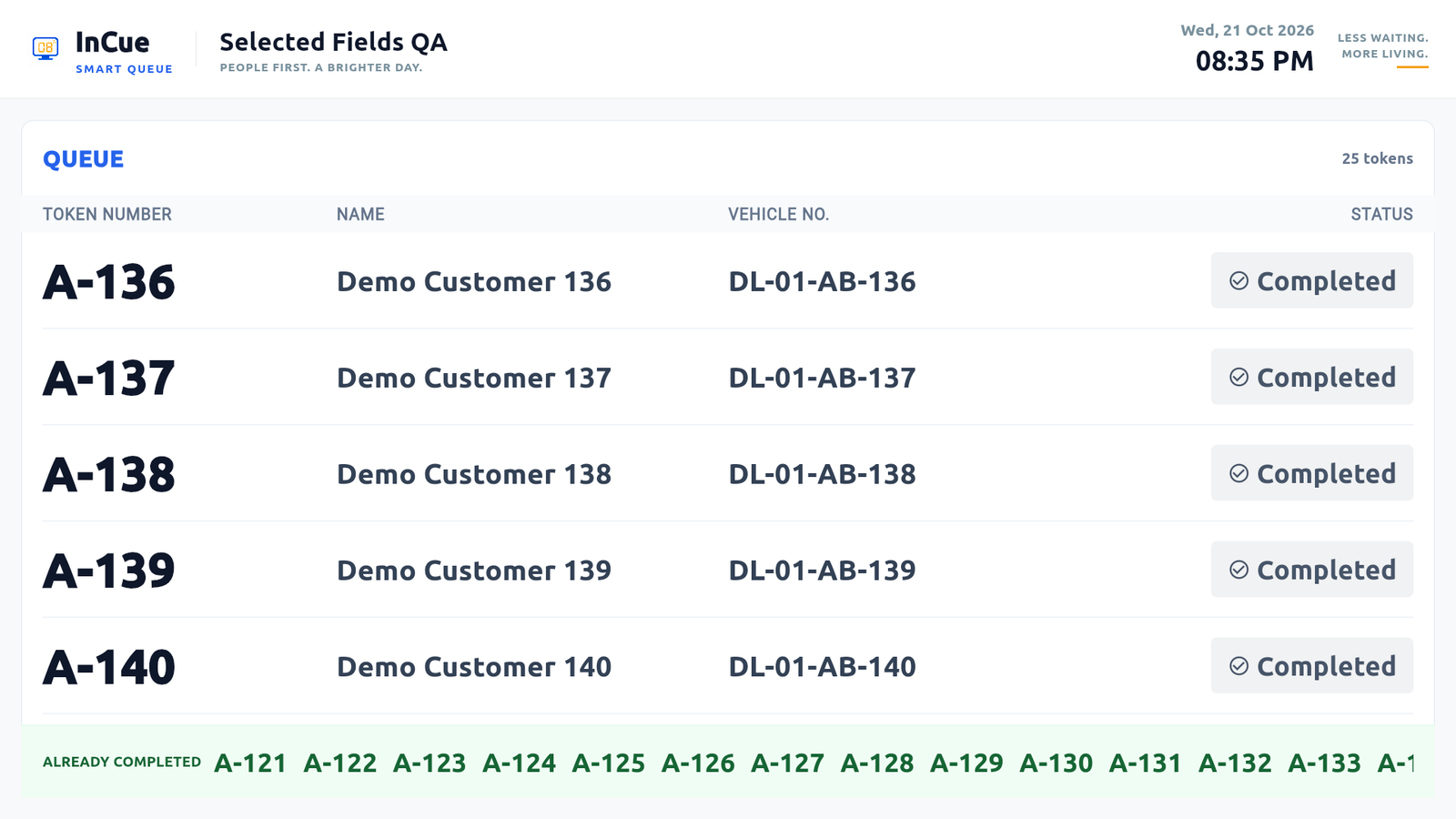 Ranked Queue display. Actual application interface with synthetic example data.1.Latest five completions form the first group.2.Older completed numbers use the bottom strip.
Layouts and details
Available layout choices are Default, Mercury, Classic, Ranked Queue, Counter Grid. Layout changes are merchant-wide display settings in the inspected implementation, not a verified per-device layout editor. Verify a new setting on each paired TV. A separate per-TV counter-assignment or display-naming editor was not verified; do not assume those controls are available.
You can select at most two optional public detail fields, including customer name and approved custom inputs. Token number/status are core information and do not use that two-field allowance. Public display is off by default for personal fields. A Counter column appears only where actual assignments provide a counter; a blank invented counter is not required.
Ranked Queue v24 is one full-width table. The latest five completed tokens appear first, then remaining tokens oldest-to-newest. Older completed numbers appear in an Already completed strip. Main and footer lists scroll only when they overflow, with a five-second reading hold and about 900 ms movement. The footer uses recent synced history; it is not guaranteed to contain every completion for the whole day.
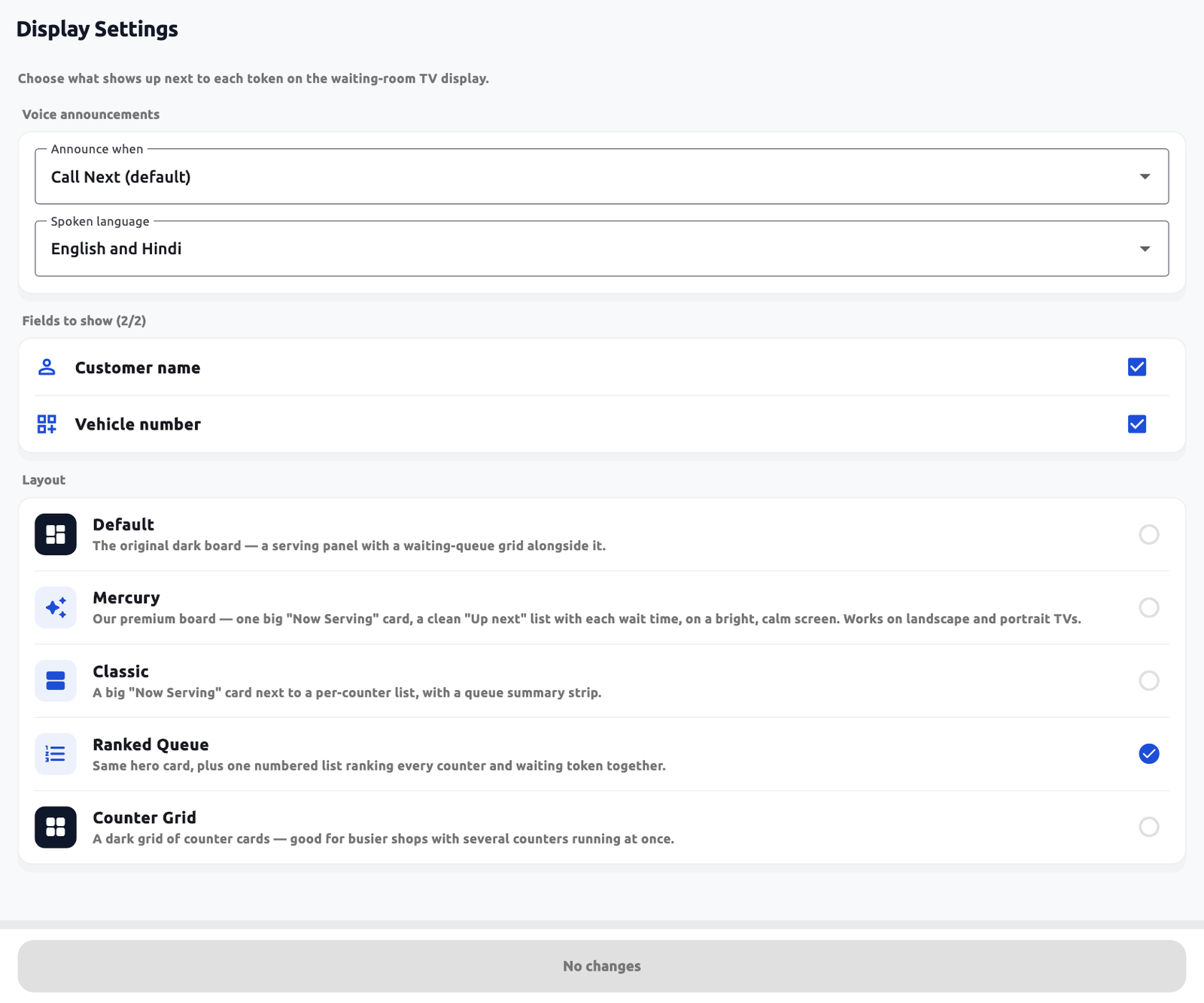 Display settings. Actual application interface with synthetic example data.1.Choose announcement event and spoken language.2.Choose at most two optional public details.3.Select the layout; save when changes are ready.
Voice announcements
Announce when: Call Next (default), Work completed / collection, Call Next and work completed, or Announcements off. Spoken language: English and Hindi, English, or Hindi. Completion modes allow custom English/Hindi collection text, up to 240 characters each.
For a service centre, choose Work completed / collection and text such as “Your work is complete. Please collect your vehicle.” For a clinic, keep Call Next unless completion announcements are useful. Test both languages. Some TV browsers lack voices; recorded fallback can speak token letters/digits and collection instructions but cannot pronounce every custom name/text exactly. Visible data remains important.
Compatibility and recovery
Use a current Chrome, Edge, Firefox or Safari-capable device with the rendering features required by the app. “Smart TV” alone does not establish browser compatibility. A current Android TV box or supported browser device is an alternative for an old embedded browser. The software-rendering retry can help graphics problems; it cannot add missing browser capabilities.
Live synchronization needs a working secure connection. A disconnected board can retain cached information; reconnect and verify a fresh sample change. Auto-update waits around active announcements; allow it to finish. The sound check page tests audio without generating a customer token. It does not pair a TV or prove queue synchronization.