 InCue
InCueChapter 6 of 23 · Updated 22 October 2026
Operate the token queue
On this page
Before every operation
Check the business, date, connection and token number. Read the status; Called is different from Serving. If an action fails, read the error and verify the record before retrying. A disabled button often means the token is in the wrong state or the user lacks permission.
Create a walk-in token
Location: Queue Dashboard Walk-in. Owner-side Queue Monitor forms exist in the inspected code, but a current main-menu entry was not verified; reception should use Queue Dashboard.
- Press Walk-in to open Generate Walk-in.
- Enter the customer's name and mobile number as requested by the form. Do not make up a mobile number for a person without one; follow the form's optional/required validation and the business's workflow.
- Fill merchant-defined required inputs, for example Reference number or Vehicle number. Staff can fill answers but cannot add or change the definitions.
- Search and choose one or more available services. Select an emergency upgrade only when appropriate.
- Review Token Preview, expected ETA, payment mode, Collectible, pending amount and any revisit benefit.
- Confirm Generate once. Keep the form open if the request fails; review the error or refreshed quote.
- Confirm that the new token appears in Waiting. Give the customer the token/tracking information.
Result: a new Waiting token. A selected Prepaid amount is recorded at generation; Postpaid remains pending until completion. These accounting fields do not by themselves prove a bank/card transfer. WhatsApp may be attempted only when the flow is eligible; a failed message does not mean token creation failed.
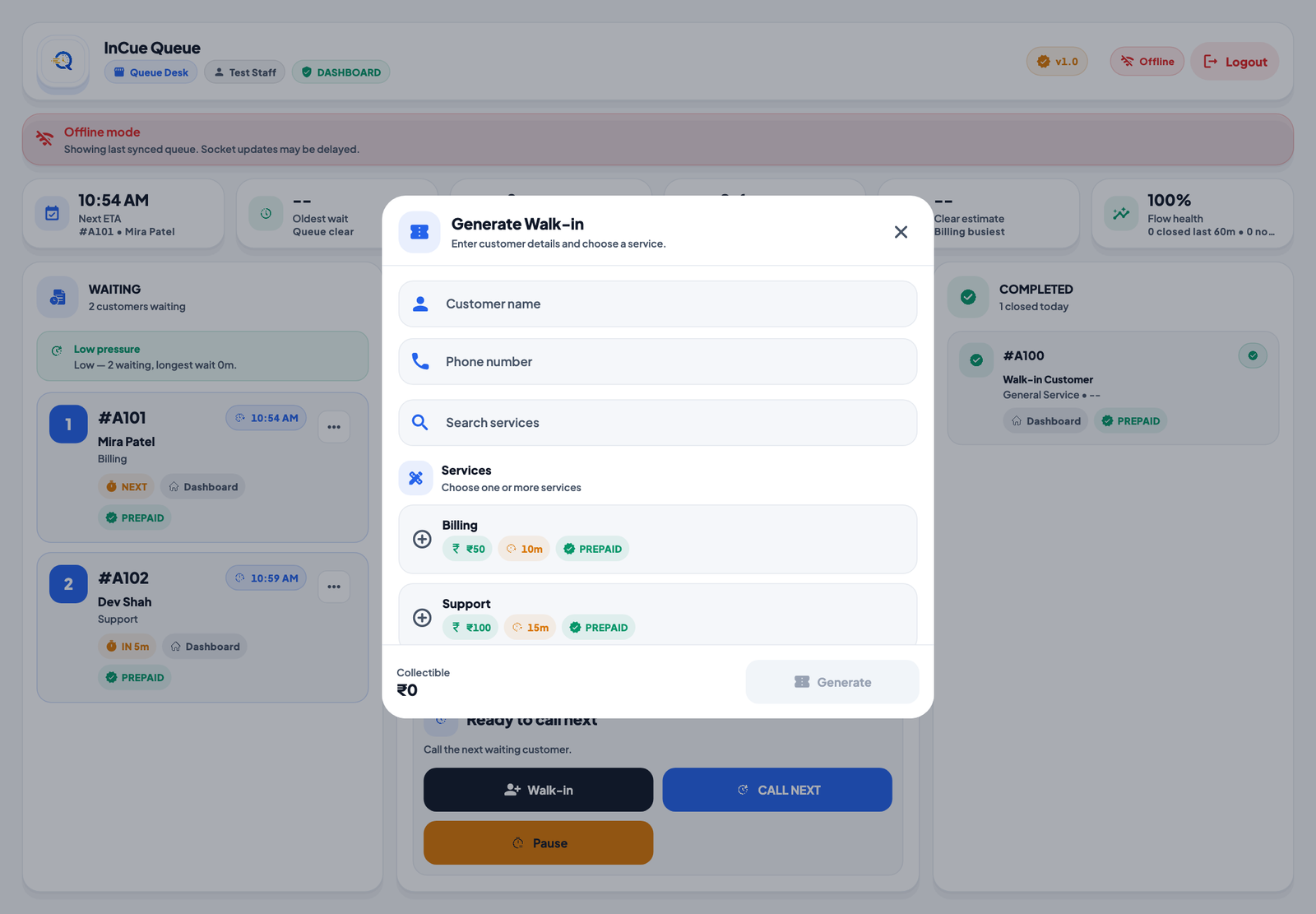 Walk-in token form. Actual application interface with synthetic example data.1.Enter customer details.2.Select the required services.3.Review the amount before Generate.
Call Next
Who: owner or permitted queue/call operator. Initial state: Waiting.
- Confirm that intake/service is not paused and the appropriate counter can receive work.
- Press CALL NEXT.
- If offered, choose the call count or a compatible available counter in the call dialog.
- Confirm the call. Verify the token in Now Serving with Called/Calling, not yet Serving.
Effects: the called token leaves Waiting, its TV state changes and configured call announcements run. An eligible WhatsApp counter-called/turn update can be attempted. Counter users must finish or otherwise handle their current active slot before calling another token.
The call dialog works from the waiting order. A general “call any arbitrary waiting token” control was not verified. Do not use a menu action from a different token to bypass order. Use emergency priority or an appropriate permitted workflow, and tell the customer what you changed.
Start service
Initial state: Called or a Held token eligible to restart. Who: queue/service-completion permission.
Select the relevant token and press Start. Check that it changes to Serving and its service timer begins. Starting a held token must also satisfy counter/session rules. The TV changes state; the customer tracking page updates after synchronization. A separate configurable “service started” WhatsApp switch was not verified.
Complete service
Initial state: Serving. Who: queue/service-completion permission.
Select the serving token, confirm work is actually finished and press its Complete action. Verify Completed in the closed list. Completion can settle pending Postpaid service amounts in the visit record. Check actual money received separately before confirming at reception.
A successful completion releases the assigned counter for compatible work. The TV updates and, if configured, announces the collection message. Eligible feedback-link messaging may follow. Completed records are not ordinary editable waiting tokens; no universal undo/reopen button was verified.
Hold and bring back
Initial state: Called. Press Hold when the customer is temporarily unavailable and should not be closed as a no-show. The token becomes Held / On Hold and is shown in the On hold area/count. Other customers can continue through compatible capacity.
Open the held-token view and use its offered Start action when that customer returns. Verify Serving and the right counter. A general “restore to exactly the old waiting position” command was not verified. Do not describe Hold as cancellation or free reissue.
No-show
Initial state: Called. Select the absent customer's called token and use No-show. Verify the closed record shows No-show, not Completed. Pending Postpaid work is waived by the closing logic; already collected prepaid money is not automatically returned. TV/tracking show a closed outcome. This does not count as successfully completed work for revisit qualification.
Automatic no-show exists behind an owner/account configuration, off by default in the backend. A merchant-accessible toggle was not verified in the current Settings screen. Do not promise an automatic timeout or instruct staff to wait for one.
Cancel a waiting token
Location: Waiting token three-dot menu > Cancel token. Initial state: Waiting. Who: permitted queue/service-completion operator.
- Identify the exact waiting token.
- Open the menu and choose Cancel token.
- Enter the required cancellation reason. Check the token number again.
- Confirm cancellation once and verify Cancelled in the closed list/history.
The token is removed from waiting; tracking/display state changes. Cancellation does not refund a gateway payment, restore a consumed free revisit or reduce the daily issued count. There is no verified general undo. A dedicated cancellation WhatsApp template is not promised.
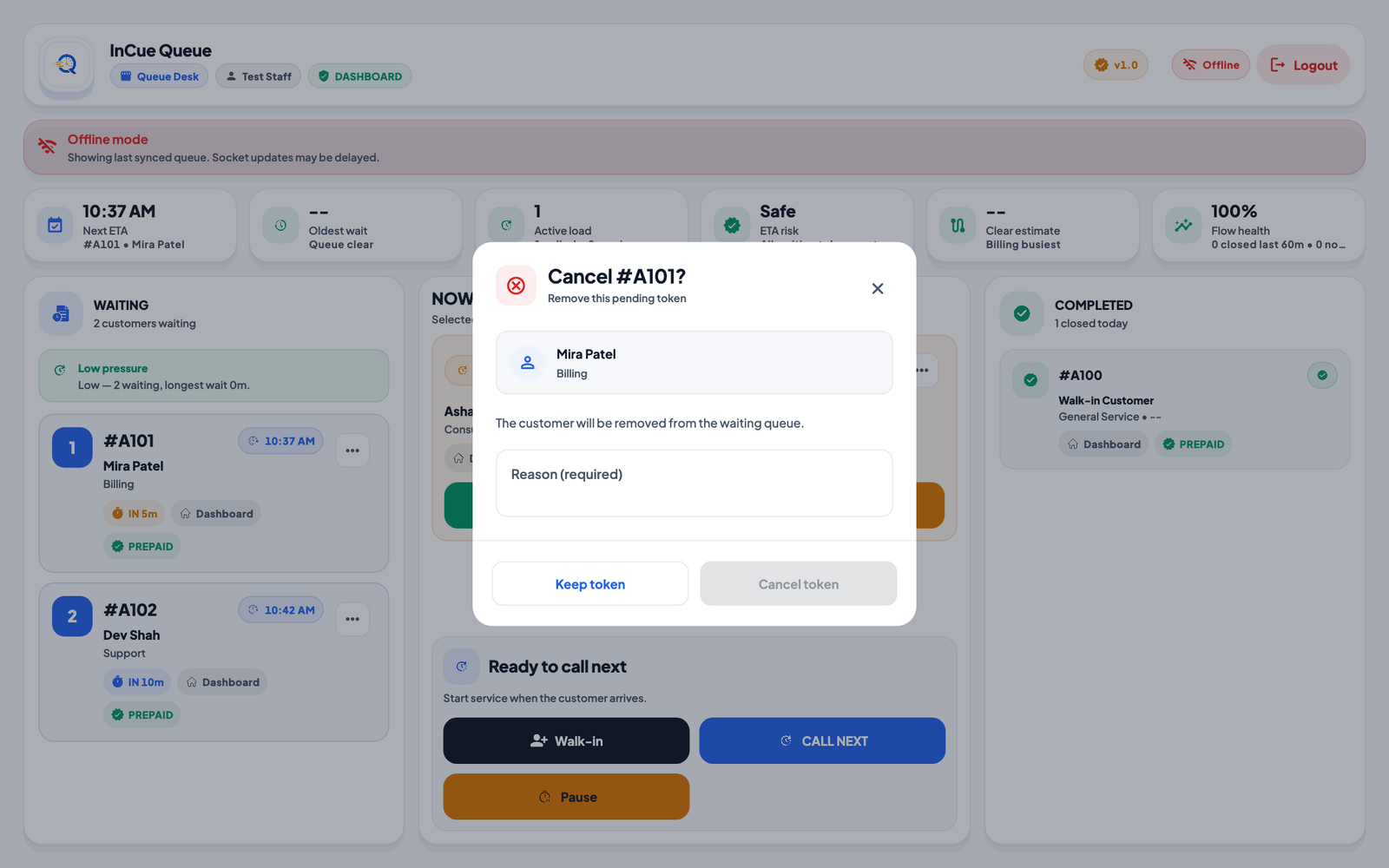 Cancel confirmation. Actual application interface with synthetic example data.1.Confirm the exact token and enter the required reason.
Move to another counter
Location: eligible Called token three-dot menu > Move to another counter. Who: Dashboard queue manager; not Counter mode.
- Open the action for the called token before service starts.
- Wait for the live compatible-counter list to load.
- Choose an eligible available counter and confirm.
- Verify the new counter on the token and TV. Tell the customer where to go.
Targets depend on active staff, service compatibility and availability. The action can be hidden if there is no eligible target. If the token or counter changed while the dialog was open, reload rather than forcing the old selection. The token keeps its identity; it is not a new Waiting token. An eligible transfer message is handled separately from the first call notification.
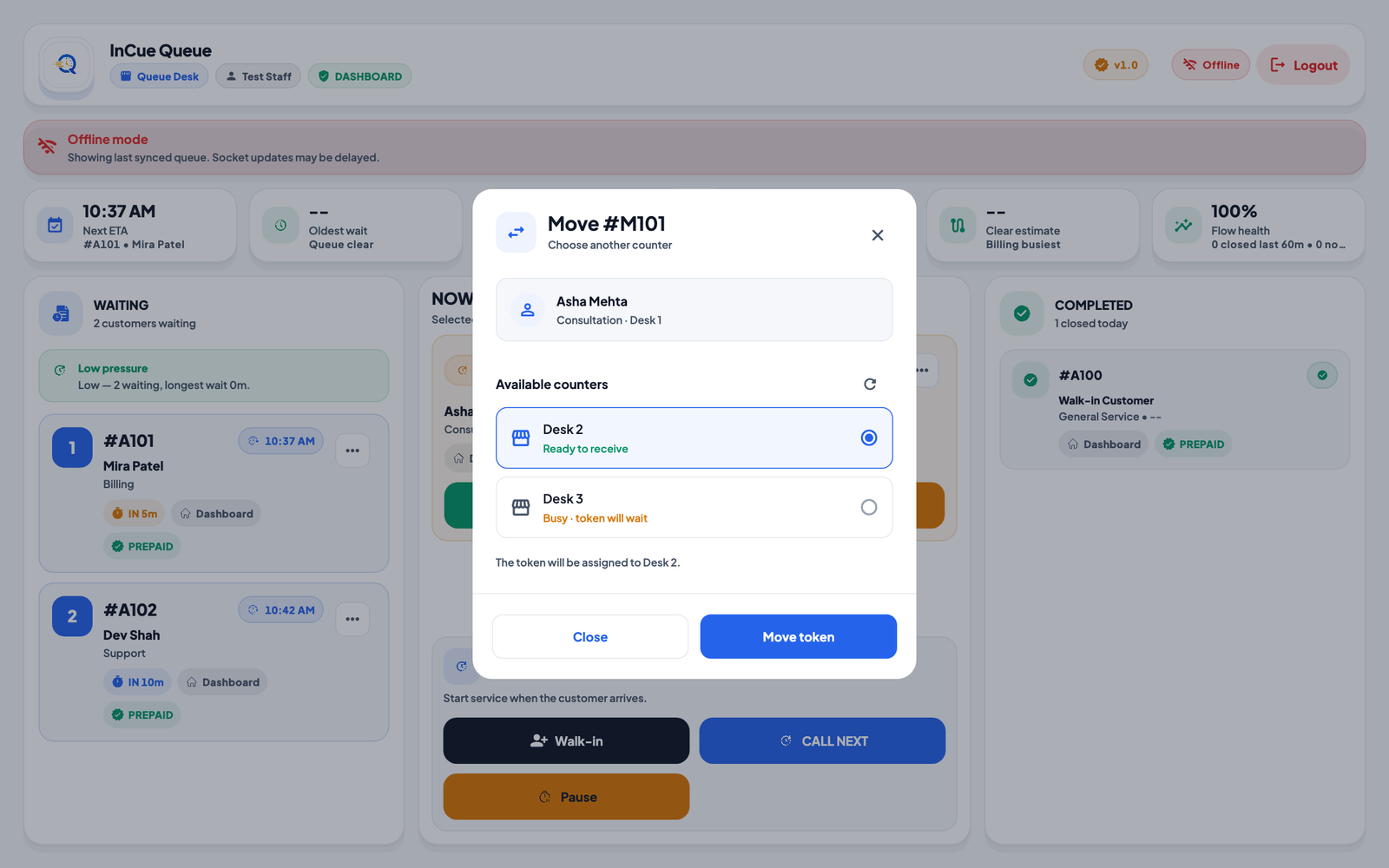 Choose a compatible counter. Actual application interface with synthetic example data.1.Choose an eligible compatible counter.
Pause and Resume
Use Pause in the Action Centre when service must stop temporarily. A paused queue blocks calls until resumed. Customer tracking and ETA should reflect the pause rather than a promised turn time. Resume restores the active flow and recalculates estimates. A pause does not complete, cancel or refund tokens. “Accepting” concerns intake/availability and can differ by Dashboard/Counter mode; it is not a replacement for checking queue status.
Auto-complete on next
When your plan permits it and the owner enables Auto-complete on next, advancing compatible work can complete previous work as part of the operation. Test this with your own counter arrangement before enabling it. Staff should still understand which customer is being closed. Leave it off when work needs explicit completion, payment checks or collection confirmation.
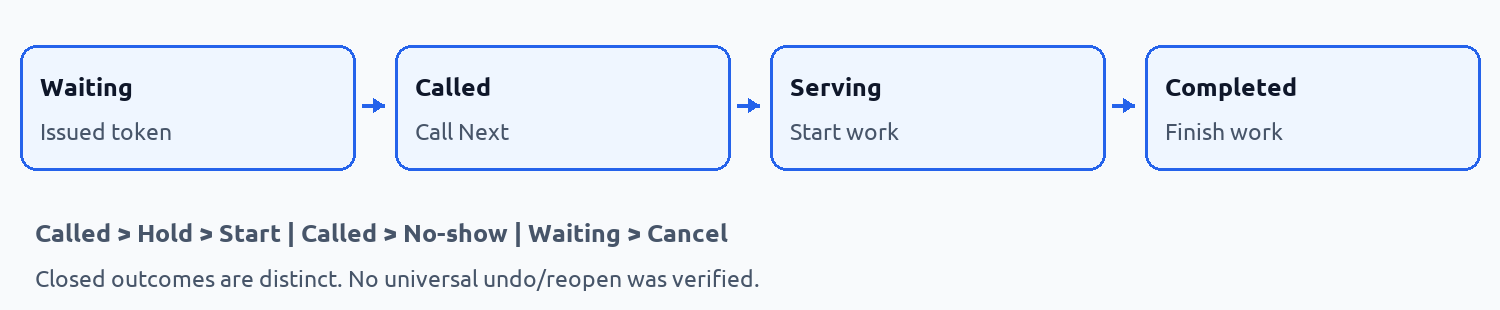 Token lifecycle. Workflow illustration.
Practice scenarios
A. New customer: issue T-24; verify Waiting; Call Next changes it to Called; Start changes it to Serving; Complete closes it. The customer follows the same token link throughout.
B. Missed turn: hold a called token for a short absence, or mark No-show if the visit should be closed. Do not mark Completed merely to remove an absent person.
C. Different counter needed: transfer the Called token to a compatible available counter before starting. If already Serving, the inspected Dashboard does not offer the same transfer action; ask the supervisor for an appropriate supported operational decision.
D. Lunch break: announce the delay, Pause service and confirm whether intake should also stop. Resume when capacity is ready. Planned breaks should be configured in business hours.
E. Finish and continue: select the correct Serving token, Complete it, verify payment handling and then Call Next. With auto-complete enabled, confirm that its behaviour matches your operating policy before relying on it.