 InCue
InCueChapter 16 of 23 · Updated 22 October 2026
Plans, marketplace & payments
On this page
A base plan is the starting requirement. Optional services/extra seats can be added on top; a standalone extra does not replace the base plan. Included QR check-in and customer queue tracking should not be sold to your staff as separate mandatory per-visit products.
Dated plan reference
| Default entitlement | Starter | Growth | Pro |
|---|---|---|---|
| Monthly, before GST | ₹499 | ₹999 | ₹1,499 |
| Yearly, before GST | ₹4,999 | ₹9,999 | ₹14,999 |
| Display devices | 1 | Up to 3 | Up to 5 |
| Staff / Dashboard users | 1 | Up to 3 | Up to 8 |
| QR, tracking, token generation | Included | Included | Included |
| Activity logs | Included by current default plan | Included | Included |
| Analytics | Basic | Advanced | Full |
| Auto-complete on next | Not in default plan | Included capability | Included capability |
| Multi-counter / advance appointments | Not in default plan | Included capability | Included capability |
| Export entitlement | No | No | Yes; usable download UI not verified |
| Priority support flag | No | No | Yes; no response-time guarantee documented |
This table matches inspected default plan definitions and the dated public prices, not a read of your production contract. Included capability still needs configuration. Special account grants, offers and add-ons can alter limits. Yearly prices are the stated amounts, not a calculation you should replace with exactly 10 times the monthly price. Plan GST is shown in checkout/invoice; the default configuration uses 18%, but rely on your issued invoice and applicable billing details.
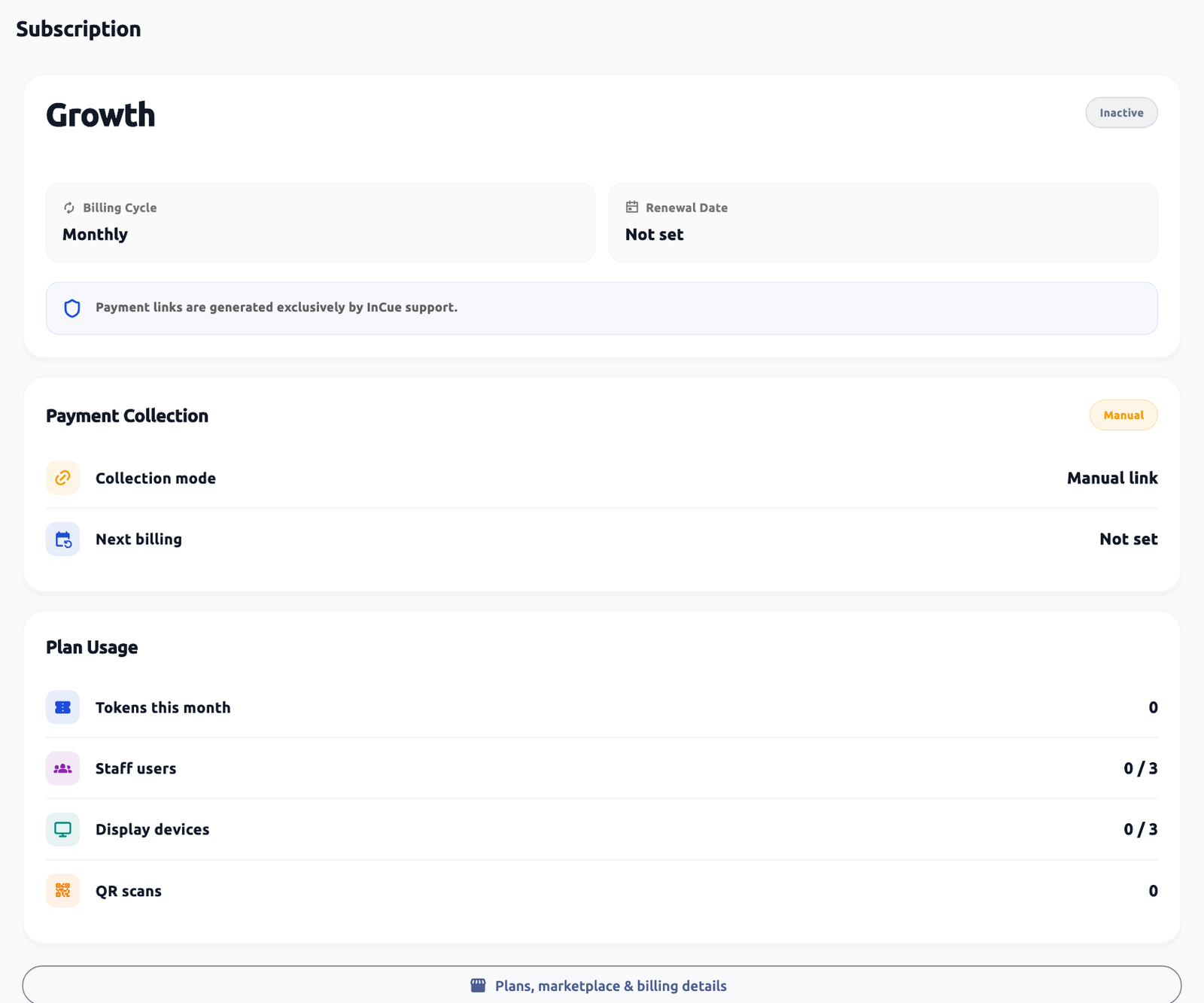 Subscription status and marketplace entry. Actual application interface with synthetic example data.1.Check actual plan status and service dates.2.Open plans/marketplace details where available.
Buy or change plan and extras
Location: Account > Subscription & Billing > Plans, marketplace & billing details, opening Plans & marketplace where offered.
- Review current plan, Billing Cycle, expiry, Plan Usage and payment/collection status.
- Open the plans/marketplace control. Check Billing & GST details before payment.
- Choose Base plan and Monthly or Yearly. Set optional service quantities only for extras you intend to buy.
- If offered, choose Upgrade for the remaining period. Otherwise the new plan is scheduled for renewal; downgrades apply at renewal.
- Press Review price & service dates. Read each item, service dates, tax, total and any terms.
- Tick I approve these services, dates and total. only after checking them. Press Approve & pay.
- Complete the payment once. Return to check the activated/scheduled services and invoice.
- For an unfinished checkout use Check payment, Continue payment or Cancel checkout as appropriate. Cancelling an unpaid checkout is not a refund of a successful charge.
The app and backend implement a self-service quote/checkout interface. Public marketplace text still says some extras require the InCue team and self-service is coming soon. Treat the visible, enabled account workflow as the available option; if it is absent or blocked, contact support. Live paid checkout and renewal processing were not executed for this manual.
Add-on reference and billing boundaries
| Item | Dated reference / action |
|---|---|
| Extra display | ₹100 + GST per display/month beyond included entitlement; check quote/activation. |
| Extra staff/dashboard user | ₹100 + GST per user/month beyond included entitlement; check quote/activation. |
| Ads on TV | ₹499 + GST/month or ₹4,999 + GST/year; separate add-on. |
| Default ₹1 eligible token flow from prepaid balance; recharge and appointment charging are separate checks. | |
| Feedback | Public reference ₹299/outlet/month without enabled WhatsApp; inclusion/activation must be confirmed. |
| Advanced reports | Included with eligible plans; ₹499/outlet/month is a published later/standalone reference, not an automatic extra charge to an included plan. |
| Setup/training | Public launch/basic-onboarding offer; later reference ₹999 onwards. Confirm the agreed scope; do not assume paid field installation. |
Offers do not authorize an automatic future paid conversion. Review explicit service dates and approval. Use Stop renewal at period end where offered if you do not want future renewal; this is not immediate termination or an automatic refund. Do not lower seat quantities below active use without first resolving the extra staff/display devices.
Invoices, GST and online customer money
Open Recent Invoices in Subscription. Review invoice date, due date, plan/item details, subtotal, discount, GST, total, paid status and payment link where present. Use Copy Link / Copy Payment Link only for the correct invoice. A newly paid invoice may need confirmation/reconciliation before all entitlements refresh.
Billing & GST details are for your purchase from InCue. Enter correct legal name, GSTIN where applicable, billing address/state and contact fields offered by that form. A business service token is not automatically a customer GST invoice, and merchant subscription invoices are not a complete GST filing/reporting product for your own business. Ask your accountant about statutory use; no customer-facing GST filing console was verified.
Online Payments is a different feature: it connects customer prepaid payments to supported gateway configurations for the merchant. Use only your own approved gateway account, choose the supported provider and Connect & verify credentials inside the secure form. Never send API keys in a support screenshot. Provider options/account activation vary; a “Coming soon” card is not an active gateway.
Payments & Payouts shows payment/settlement records and charges. Payout creation and bank routing are read-only here in the inspected view; customers should not be directed to internal operator tools. Reconcile recorded Collected, gateway charges and actual bank settlement separately.
If a customer paid but received no token, check Online Payments > Payments that need you. Verify the payment and use Give token if appropriate. Mark refunded records a refund only after you have made it in the gateway as instructed by the confirmation. It does not send money back itself. If uncertain, stop the retry/payment cycle and contact support with the payment reference.