 InCue
InCueChapter 3 of 23 · Updated 22 October 2026
Understand your dashboard
On this page
Merchant navigation
On small screens the main tabs are Home, Services, Staff, Reports, Account. On a wide screen the sidebar also exposes Display and Settings. Account groups include Shop Profile, Display Devices, QR Assign, Subscription & Billing, WhatsApp Wallet, Ads on TV, Customer Feedback, Payments & Payouts, Online Payments, Activity Logs, Settings, Notifications, Linked Accounts, Help Center and Policies.
Some older or unused screens in the source use “Business Setup” or “More”. This guide uses the active Dashboard navigation above. A registered route alone does not mean a visible menu entry exists.
Home combines today's counts, service/staff/display summaries, queue overview, live display information and recent tokens. Use Reports for a chosen period; Home is not a complete historical list. Notifications contain account, payment, quota and device notices. Opening a notification does not resolve the underlying issue.
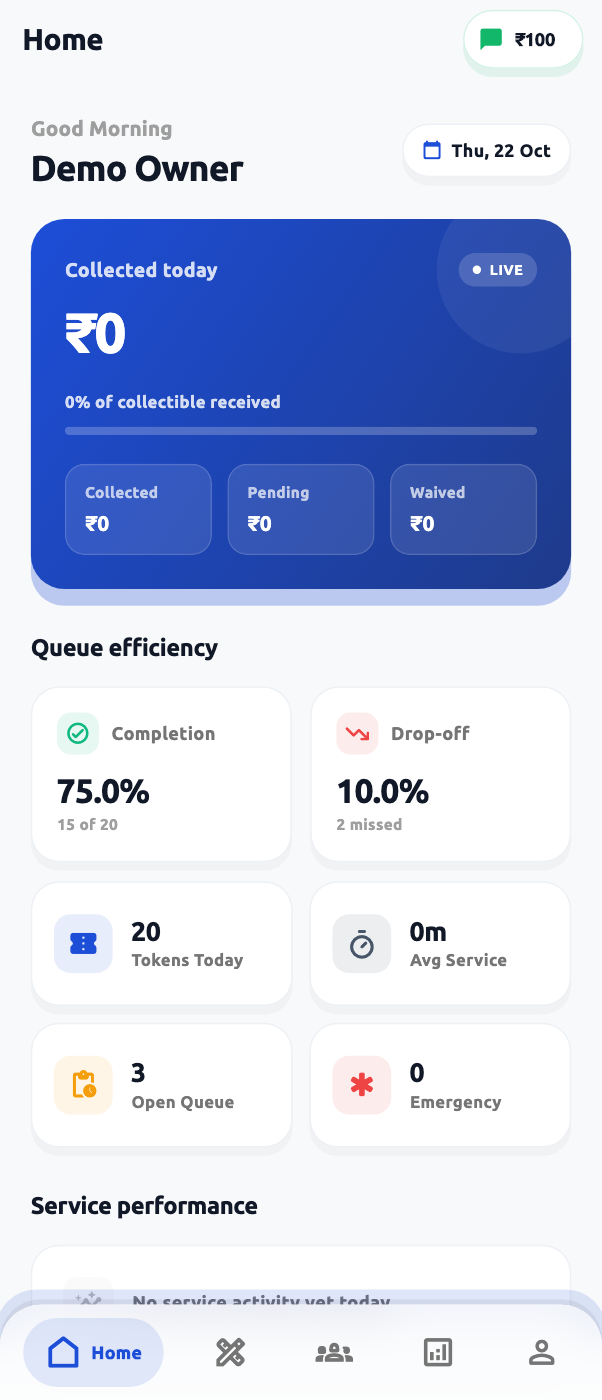 Merchant Home on a mobile screen. Actual application interface with synthetic example data.1.Navigation and current business context.2.Today's counts; use Reports for another period.
Queue Dashboard: reception view
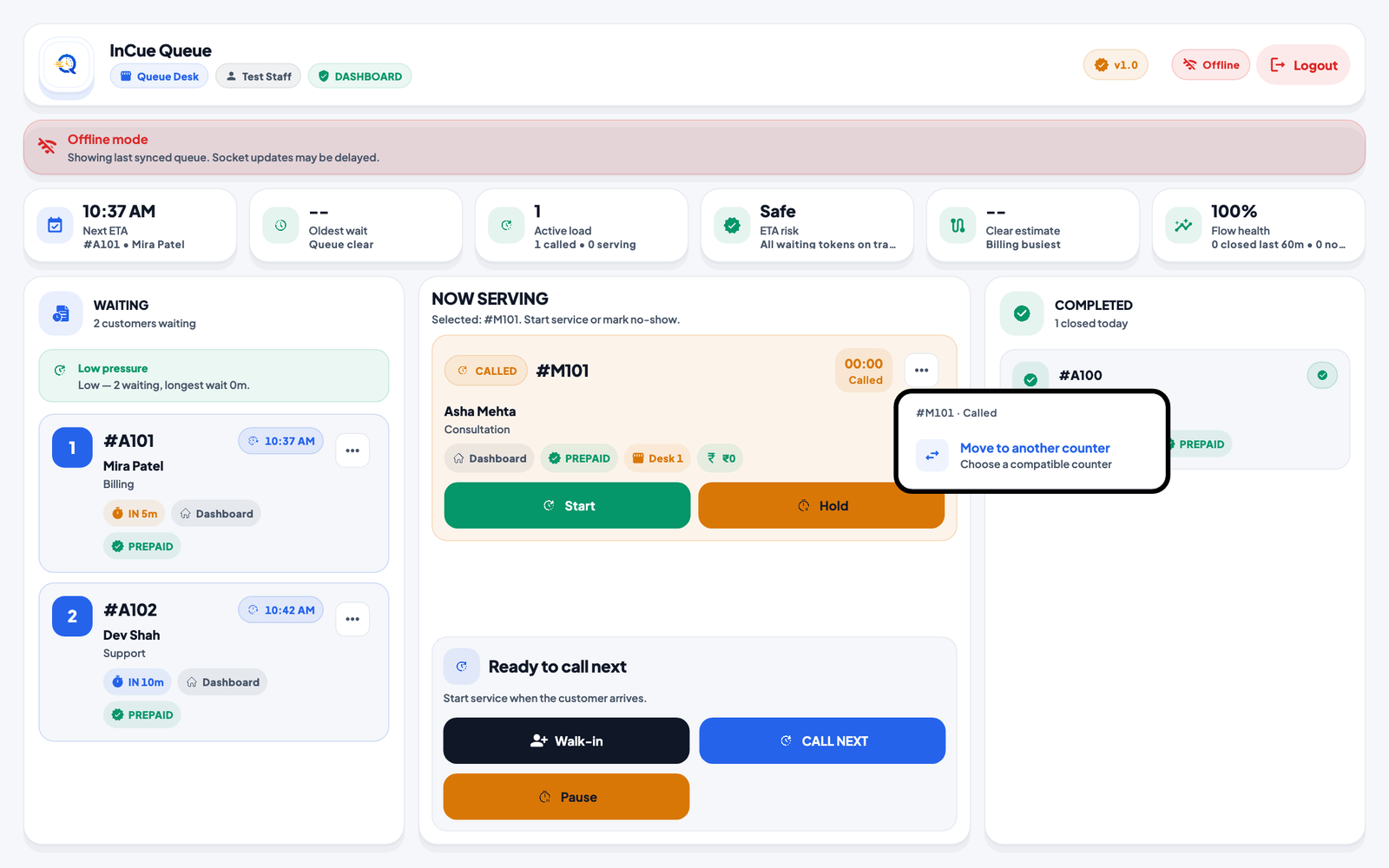 Queue Dashboard and action location. Actual application interface with synthetic example data.1.Waiting visits and token actions.2.The Action Centre operates the current queue.
- Read the business/staff name, Dashboard or Counter mode and Live/Offline connection state at the top.
- Read the Waiting, Now Serving and Completed areas. “Completed” can contain closed records such as no-show or cancelled; read the individual status.
- Use Walk-in, CALL NEXT, Start, Hold, Complete, No-show and Pause/Resume only when enabled for the selected token.
- Use the token's three-dot menu for an available Cancel token or Move to another counter action.
- Use History, Reports and Appointment when your account grants them. Counter mode intentionally has fewer controls.
Operational metrics
| Card | Read it as |
|---|---|
| Next ETA | The estimated next turn/time for the current waiting queue, not an appointment guarantee. |
| Oldest wait | How long the oldest currently waiting token has waited. An empty queue shows no waiting time. |
| Active load | Called plus serving work; held work is shown separately. |
| ETA risk | A derived delay/risk indicator. Use it to investigate; it is not a service-level promise. |
| Clear estimate | A forecast of remaining service work based on current queue/service/counter conditions. |
| Flow health | A recent operational summary, including closed/no-show context. It is not a long-term business score. |
Counts can change while the screen is open. The initial queue loads from the service, live events update it, and reconnect performs reconciliation. In Offline mode the last synced data may remain visible. Do not treat a stale screen as authority to issue a duplicate token. Wait for an acknowledged action or reconnect and verify the record.