 InCue
InCueChapter 7 of 23 · Updated 22 October 2026
QR token generation
On this page
Assign and print the business QR
Location: Merchant Account > QR Assign. Some business cards use the label QR & Token Link; use the active QR Assign screen.
- Open QR Assign. Obtain the QR code ID from an InCue-issued printed QR.
- Scan it using the in-app scanner where camera support is available, or enter it into QR code ID.
- Submit the assignment using the form's assign action. An arbitrary new ID is not created just by typing it.
- Check that the code is assigned to the correct business. Open its card/poster.
- Use Copy QR Link to test the destination. In QR Poster, use the available image/save/share action for your platform.
- Print a clear copy. Place it near reception with a short “Scan to get a token” instruction. Test the printed copy on a second phone.
Mobile poster save is implemented as a PNG/gallery workflow. Browser download/share availability is platform-dependent; if it fails, use the copied official link and ask support for a print file. Never manually change the business/token identifiers in a QR URL.
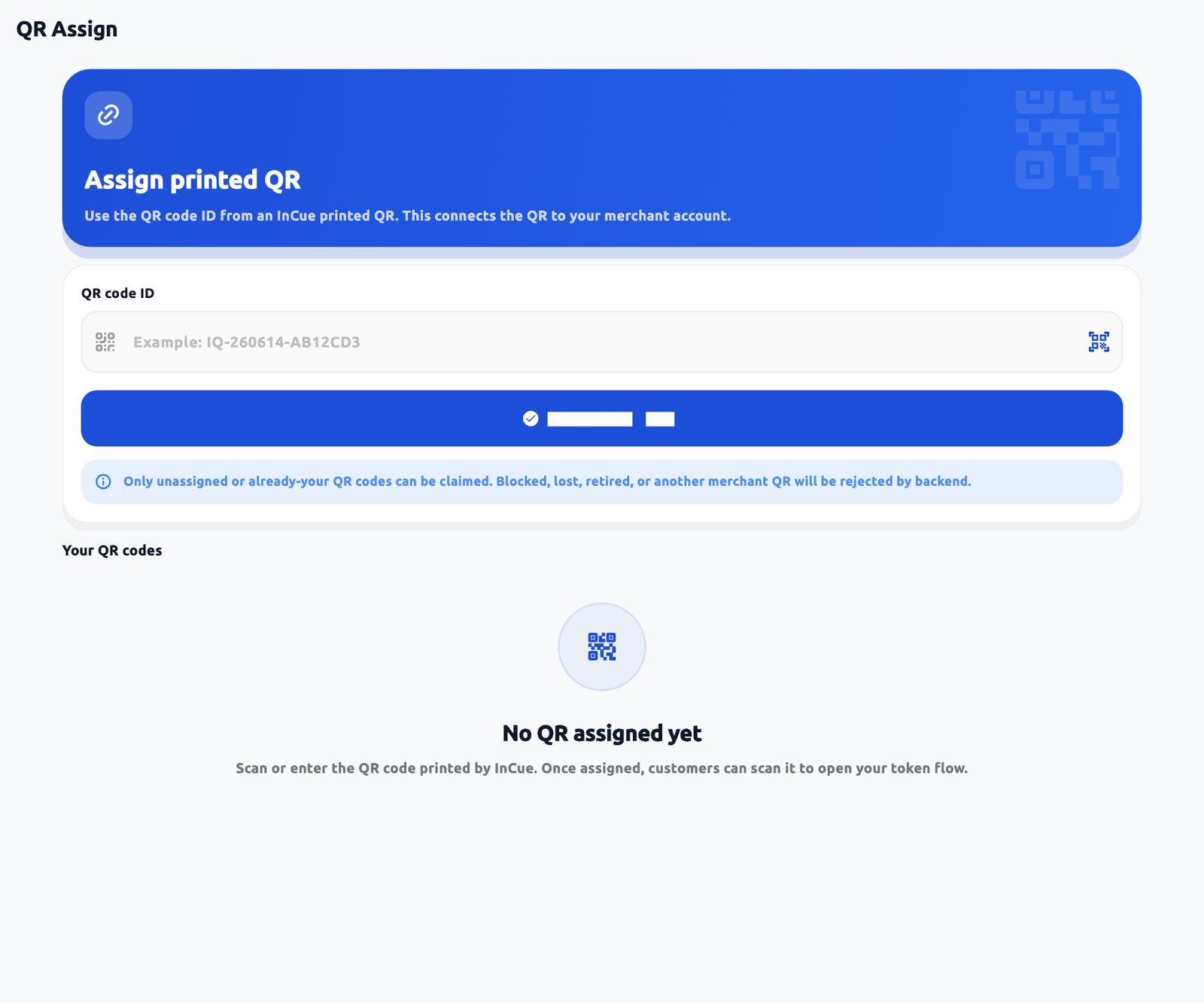 QR assignment. Actual application interface with synthetic example data.1.Enter or scan an issued QR ID, then check the assigned business.
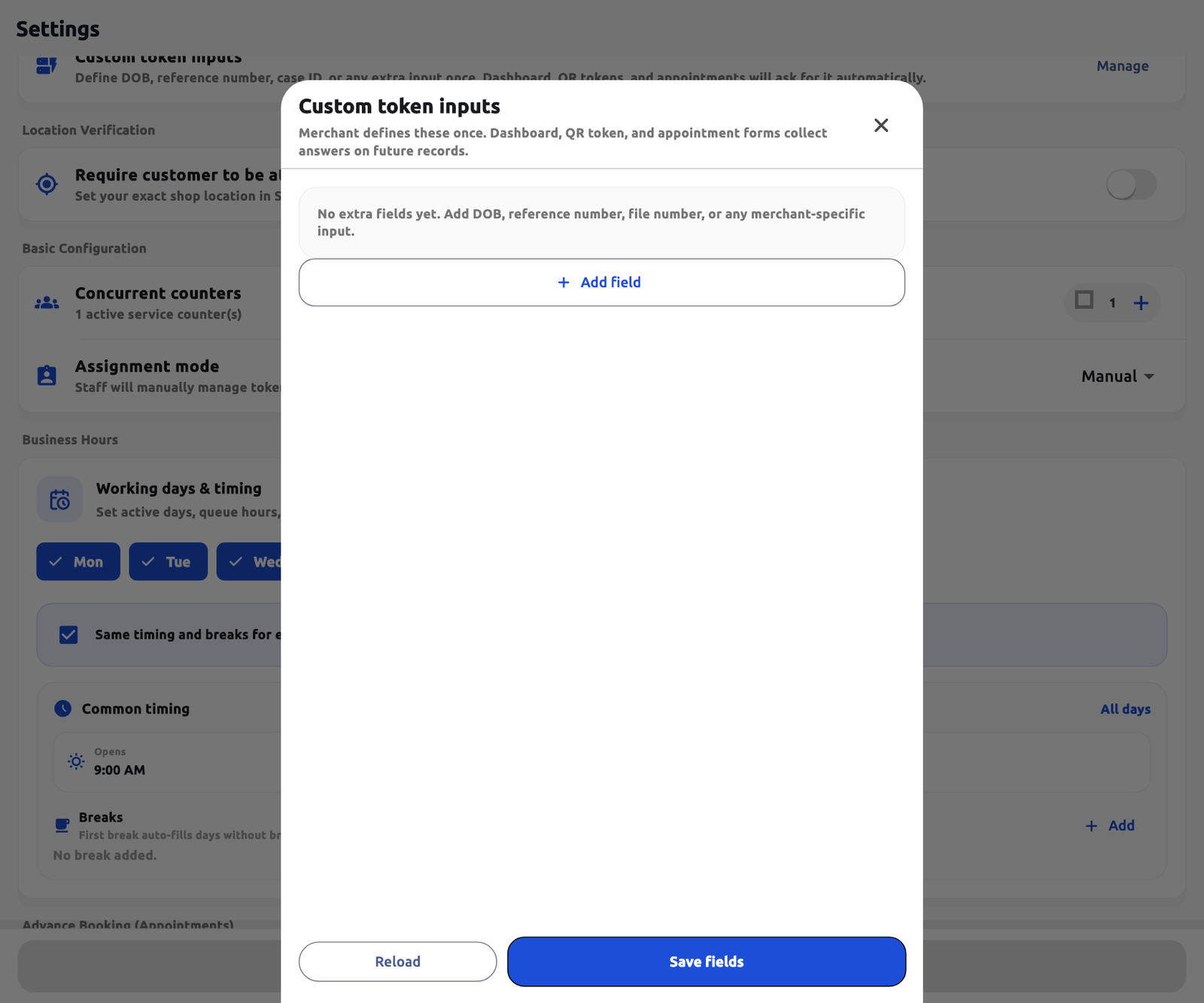 Owner-defined form fields. Actual application interface with synthetic example data.1.Add field opens the individual input editor.2.Save fields commits the complete definition list.
Customer: from scan to token
- Scan the QR with the phone camera and open the browser link. No customer app installation is normally required.
- Confirm the business name and choose an available service on 1. Choose service.
- Review its price and payment mode, then tap Continue.
- On 2. Your details, enter Your name, a valid Indian mobile number and any required business-specific fields.
- Read the merchant's arrival/refund terms and token privacy notice. Agree to the notice if you want to proceed. The notice and optional marketing consent are not interchangeable.
- Review any revisit benefit and the amount. For payable online prepaid work, follow the offered gateway; for no online payment, use Get my token.
- Wait for the confirmed token. Save/open the tracking link. If payment is still being checked, use the offered payment-status/recovery controls rather than paying again.
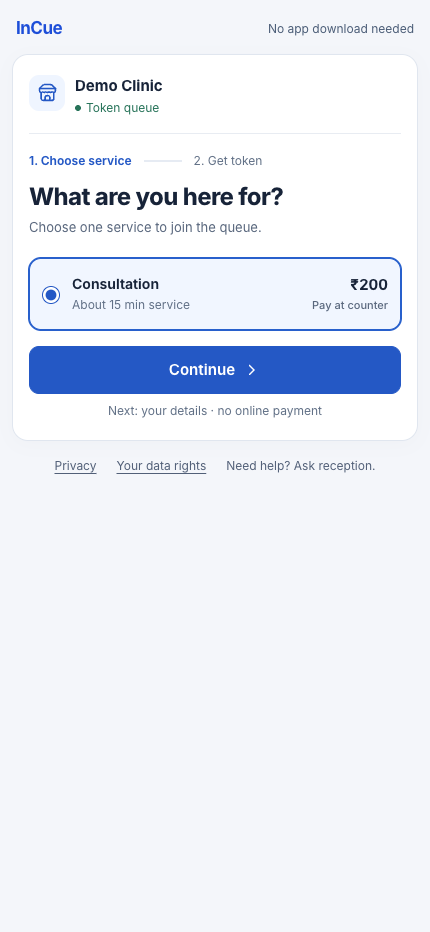 Choose a service. Actual application interface with synthetic example data.1.Review the service and amount.2.Continue to customer details.
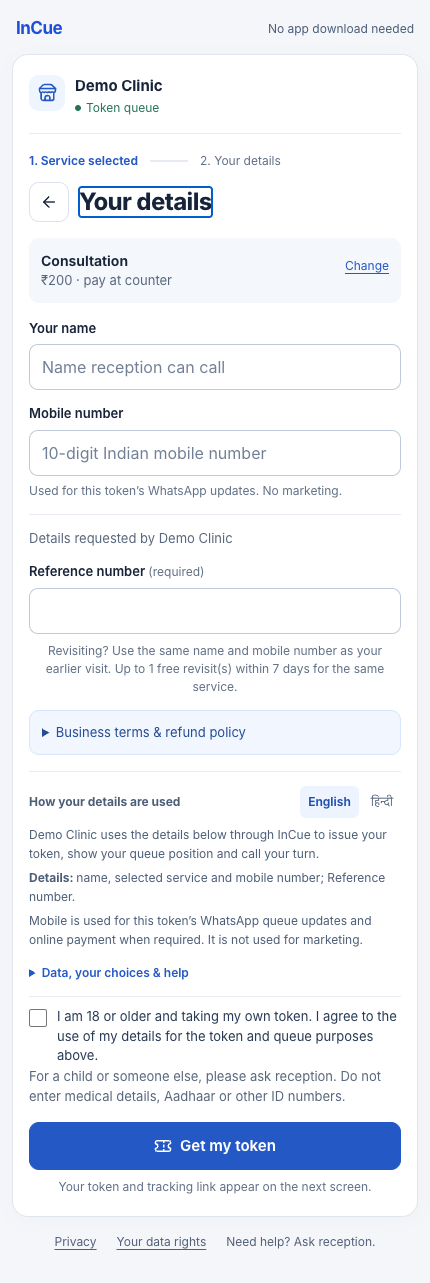 Enter customer details and review terms. Actual application interface with synthetic example data.1.Enter the actual visitor details.2.Answer required business fields.3.Read terms and privacy, then confirm.
The QR form currently requires a name and mobile number. It accepts the Indian mobile pattern used by the form, with normal +91/91 formatting. Name length is capped at 60 characters in this page. Custom-field requirements and date/number boundaries are enforced again when submitted.
The WhatsApp opt-in checkbox used in an older QR design was removed from generation. The page explains visit updates and provides tracking-page controls where supported. This is not permission to send marketing. Only collect details that your business needs.
Daily online limit
The owner can set Daily limit for online tokens. Example: limit 100, issued 98 across QR + staff + appointment conversions. Two more QR places can be issued, then public issuance closes. Staff can continue subject to their normal permissions and account/service availability. Cancellation does not lower the issued count. The day changes at midnight IST.
Online payment can reserve a place. A valid pending payment hold can temporarily make the page full. Previously accepted paid requests can be honoured after a limit change or date boundary. Do not promise that the issued count can never exceed the current public cap.
Free revisit
Use the same name and mobile number as the earlier qualifying visit. Matching normalizes ordinary number formatting, name case and extra spaces; it does not fuzzy-match a different family member. The original visit must be completed and have eligible recorded charges.
Default benefit when enabled is one revisit within seven days. Only qualifying earlier service fees are waived. New services and emergency upgrades can remain payable. The merchant chooses validity days, count and whether time is counted from the original paid visit or latest completed visit. The count does not reset after a free visit. A fully free quote says no payment will be collected; verify the final quote rather than assuming all selected work is free.
QR problems and duplicates
An unassigned, inactive or incorrectly printed QR cannot be repaired by customers. Ask the owner to check assignment. Closed hours, breaks, paused/closed state, intake controls, daily limits, missing required answers, plan access and location checks can block issuance.
Paid checkout recovery is designed to return an existing issued token for that payment. A universal one-token-per-phone-per-day rule was not verified. Do not repeatedly generate a free/postpaid token while waiting for a response; check reception/tracking first. One family's shared phone number is not automatic proof of revisit eligibility.