 InCue
InCuePractical guide · Updated 22 October 2026
Staff operations guide
On this page
Edition 1.1 | 22 October 2026 | Reception and Counter use
Your owner controls business configuration and permissions. This guide covers the verified Queue Dashboard workflow. Use your own staff account; do not borrow the owner's login to bypass a restriction.
1. Start the shift
Open Queue Dashboard, sign in with your registered staff mobile/OTP and check the business name, date and Dashboard or Counter badge. Your account must be active and linked. A second device login may end the first session.
Check Live/Offline. Offline can show saved state; it does not establish that a new action was accepted. Confirm intake/service availability and your assigned services/counter. Test the TV with the agreed sample or sound-check workflow, not an unintended customer charge.
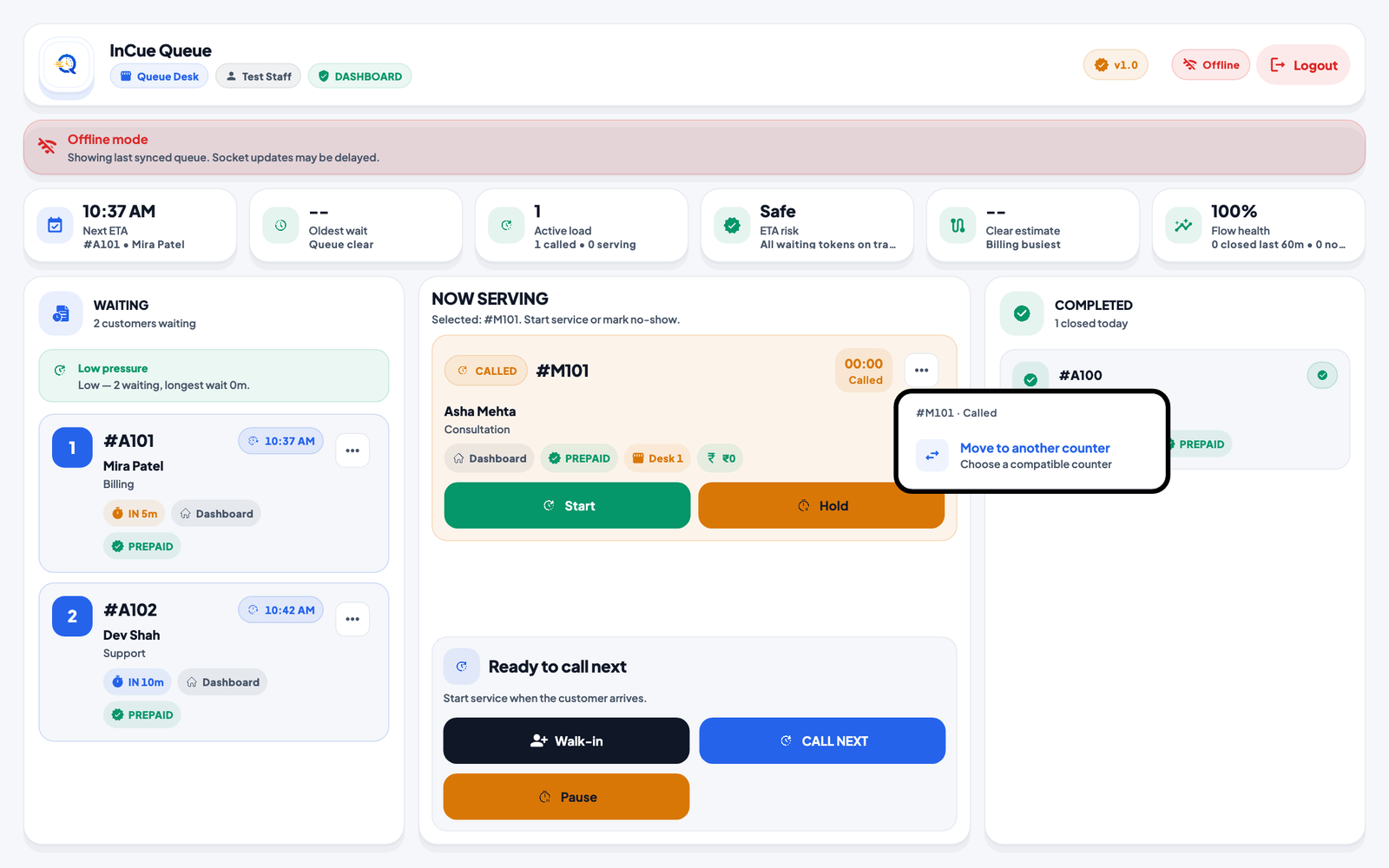 Find the queue and action controls. Actual application interface with synthetic example data.1.Waiting visits and token actions.2.The Action Centre operates the current queue.
2. Give a walk-in customer a token
- Press Walk-in to open Generate Walk-in.
- Enter the customer's details requested by the form. Use their own name/mobile accurately, especially for revisit matching.
- Fill required business fields. You can enter answers; you cannot add, remove or change the merchant's field definitions.
- Select the correct service(s) and emergency option only when agreed.
- Read the quote: normal fee, pending Postpaid amount, waived revisit benefit and Collectible.
- Press Generate once. Check for one new Waiting token and share the issued token/tracking information.
What exactly goes in the form? Use the actual visitor's name and own correct mobile; for revisits use the same genuine name/number as the earlier visit. In a Vehicle number field, enter the registration itself, for example HR02AW4354, not a phone or service name. In DOB use the actual date of birth through the date picker, not today's visit date. If you do not know an optional answer, leave it empty; never invent a required answer just to proceed. Ask the owner when a definition is unsuitable.
Read the amount's reason: ₹0 because a matching service was waived for a revisit is different from ₹0 collectible now because a Postpaid balance is due later. A selected new service or emergency upgrade can still cost extra. Explain the displayed quote before confirming.
If the form says the price/eligibility changed, review the refreshed quote. If the connection times out, check the queue/history before retrying. A failed WhatsApp message does not mean a token was not issued.
3. Call, start and complete
| What you see | Correct next action |
|---|---|
| Waiting | Use CALL NEXT for eligible waiting work; review call count/counter choice where offered. |
| Called / Calling | Customer has been called. Press Start when work begins, Hold for short absence or No-show for an absent visit that should close. |
| Serving | Work has started. Press Complete only after it actually finishes and the amount handling is correct. |
| Held / On Hold | Open the held view and use the offered Start action when the customer returns and counter rules permit it. |
| Completed / Cancelled / No-show | Closed outcome. No universal staff undo/reopen command was verified. |
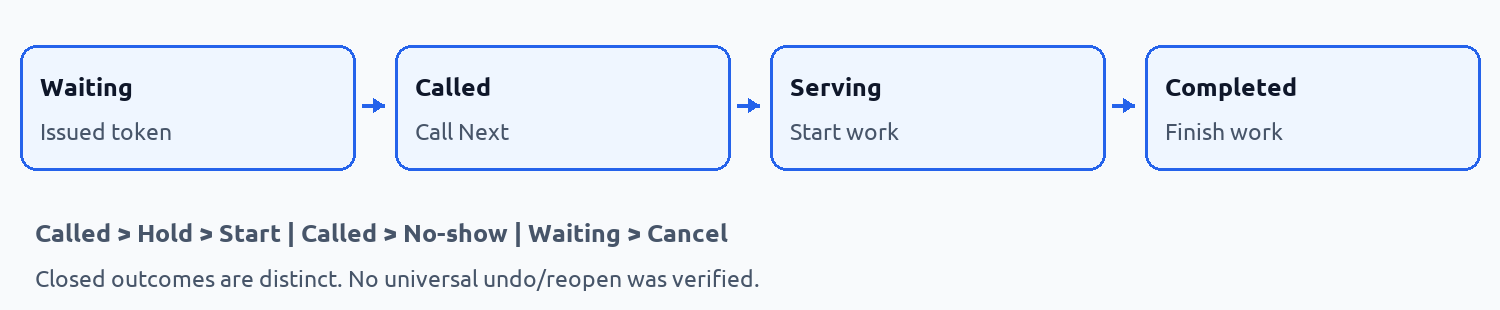 Status sequence. Workflow illustration.
For several active tokens, select the exact token before acting. Counter mode has an assigned-service scope and an active-slot limit. If the owner has enabled Auto-complete on next, understand which previous work is closed by advancing; do not discover this during an unresolved payment.
Why the exact button time matters
Call: invite the person to approach; do not pretend their work already started. Start: press when the doctor/worker actually begins. Complete: press when work really finishes and the amount handling is correct. These timestamps help estimate future turns and produce reports. Starting every token early or forgetting to complete finished work makes the data less useful.
Service duration is not waiting time. A service configured as 10 minutes means one usual job takes ten minutes after it starts. Someone with two jobs ahead can wait longer. Smart ETA also considers current work, compatible counters, recent speed and business breaks. It can change as real work changes.
What to tell customers: “Your turn is estimated around this time/range. It can change if earlier work takes longer or priority work arrives. Follow your token's live status.” Do not tell them a reminder proves they have been called. WhatsApp is conditional; if unavailable, check the live queue rather than issuing a duplicate.
Pause when work temporarily cannot progress; close intake if you only want to stop accepting new walk-ins. If Auto-complete on next is enabled by the owner, check earlier work before Next because that action can close it. A service duration timer itself does not Complete it. Read the Smart ETA training lesson with your owner.
4. Handle exceptions correctly
Temporary absence
Hold a Called token when the customer is expected back shortly. Other compatible work can continue. A hold is not a refund, not a successful completion and not a guaranteed return to the old waiting position.
No-show
Mark a Called customer No-show when the visit should close as absent. Check the closed status afterward. Do not use Completed just to tidy the queue. Already collected money is not automatically refunded.
Cancel a waiting visit
Open that Waiting token's three-dot menu, choose Cancel token, enter the required reason and confirm once. Check Cancelled in the closed/history list. This does not restore QR daily capacity or a consumed free-revisit allowance.
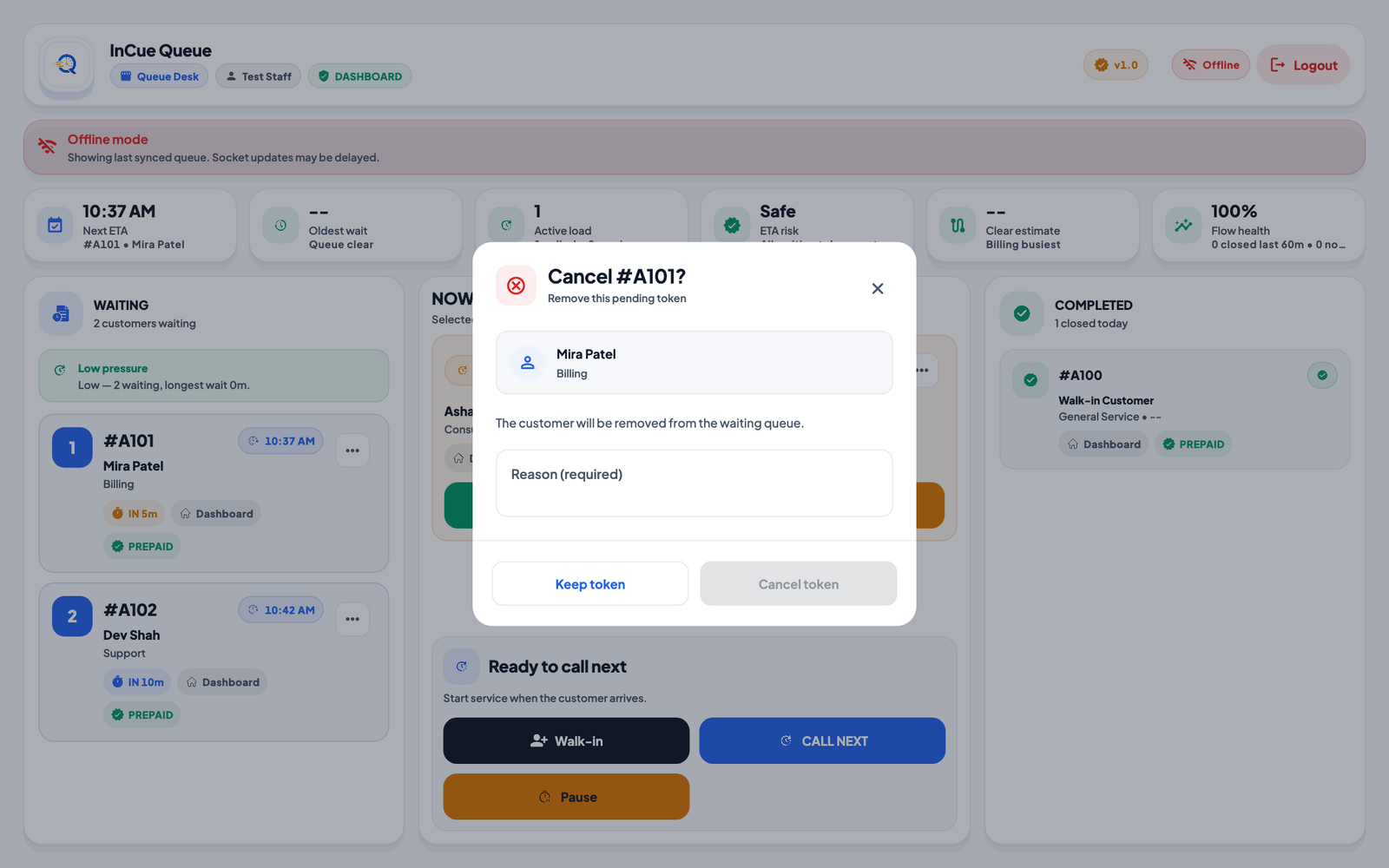 Cancellation confirmation. Actual application interface with synthetic example data.1.Confirm the exact token and enter the required reason.
Move to a different counter
A permitted Dashboard queue manager can move a Called token before Start through Move to another counter. Choose an eligible available counter, confirm and check the new assignment. The action may be absent when no compatible target exists. It is not offered as the same action for Serving work or Counter mode.
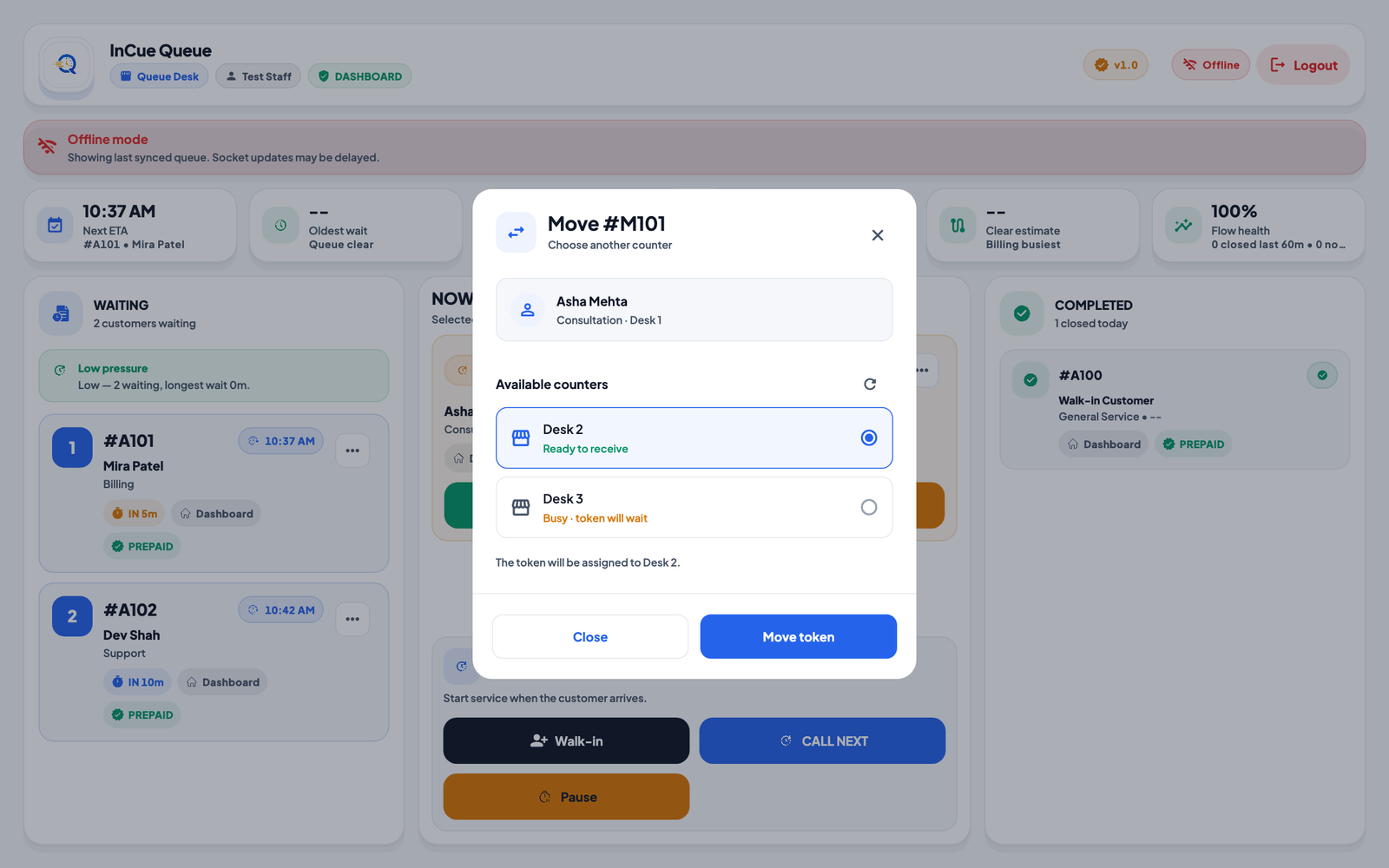 Counter transfer. Actual application interface with synthetic example data.1.Choose an eligible compatible counter.
5. Pause and resume service
Use Pause in the Action Centre for a real interruption and tell waiting customers about the delay. Resume when staff can serve again. Pause, business opening hours and Accepting/intake are different controls. Ask the owner if you are unsure whether new customers should still join.
Do not clear/reissue the queue to repair a stale TV. Check the connection and compare the exact existing token first.
6. Appointments and revisits
Appointment: open the permitted Appointment screen. Create an appointment only in an available slot with required details. A booked slot is not yet in Waiting. On arrival, check in/convert once and verify the linked queue token. Continue its normal call/start/complete flow. For an already converted appointment, operate the token; do not keep tapping Check in or cancel the old appointment to try to cancel the token.
Before conversion, use the appointment's offered Reschedule/Cancel controls as appropriate. If a converted token cannot be found, refresh and inspect the linked token/status before creating a replacement.
Revisit: the owner defines validity and count. Use the same name/mobile as the earlier qualifying paid, completed visit. The server quotes the waiver; only eligible earlier services are free. New services/upgrades can remain payable. Cancelling or marking the free token No-show does not automatically return its allowance. Do not alter identity to force a free visit.
7. Payment, messages, display and reports
- Prepaid means the service amount is recorded at token time; Postpaid remains pending until the closing/payment logic handles it. Follow actual payment confirmation, not just a colour badge.
- A token cancellation is not a gateway refund. If a customer paid but got no token, involve the owner and the payment-attention workflow. Never charge again simply because a screen is stale.
- WhatsApp needs the configured channel and balance. A provider Sent status is not Read. Keep serving through the queue if messages are unavailable.
- TV pairing, layout, public fields and announcements are owner settings. Check internet, mute and sound unlocking before escalating a display issue.
- Reports/History require extra permission and the offered date scope. Match date/status filters before comparing counts. Customer history is not for browsing unrelated personal visits.
8. One-page shift checklist
Open
- My own login; correct business, date and Dashboard/Counter mode.
- Online state checked; actual counters and assigned services ready.
- Intake, hours, pause state and TV verified with the supervisor.
Serve
- Issue once; correct service, required details and reviewed amount.
- Call > Start > Complete on the correct record.
- Hold, No-show, Cancel and transfer only in their supported states.
- Explain delays; do not promise exact ETA or guaranteed WhatsApp arrival.
Close
- Resolve Waiting/Called/Serving/Held honestly.
- Report unresolved payment/token or mistaken-action cases.
- Reconcile recorded collection/pending totals with actual money handling.
- Stop intake as instructed; log out shared devices without removing TV pairing.
Escalate
- Share business, workspace, IST time, token/payment reference and redacted error.
- Never share OTPs, passwords, gateway keys or unnecessary customer/medical details.
- Owner handles configuration/access; InCue support handles unresolved product/account issues.
Support: support@incue.in, +91 7988919040, incue.in/contact. No fixed response-time guarantee is implied by this guide.