 InCue
InCuePractical guide · Updated 22 October 2026
Quick start
On this page
Edition 1.1 | 22 October 2026 | For a business owner setting up the first queue
Keep the Complete User Manual nearby for settings, limits and troubleshooting. This guide gets you to one correctly handled visit. It does not replace gateway approval, staff training or actual TV testing.
1. Choose the right workspace
| You are | Open |
|---|---|
| Owner | merchant.incue.in or Merchant app |
| Reception / Counter user | dashboard.incue.in |
| TV / waiting-room screen | display.incue.in or supported Display app |
| Customer | The assigned business QR link and individual token tracking link |
Merchant login uses your registered mobile and OTP; linked Google access is optional where configured. Use the latest OTP. Do not share it. Staff must be added by the owner before their own OTP login will have access.
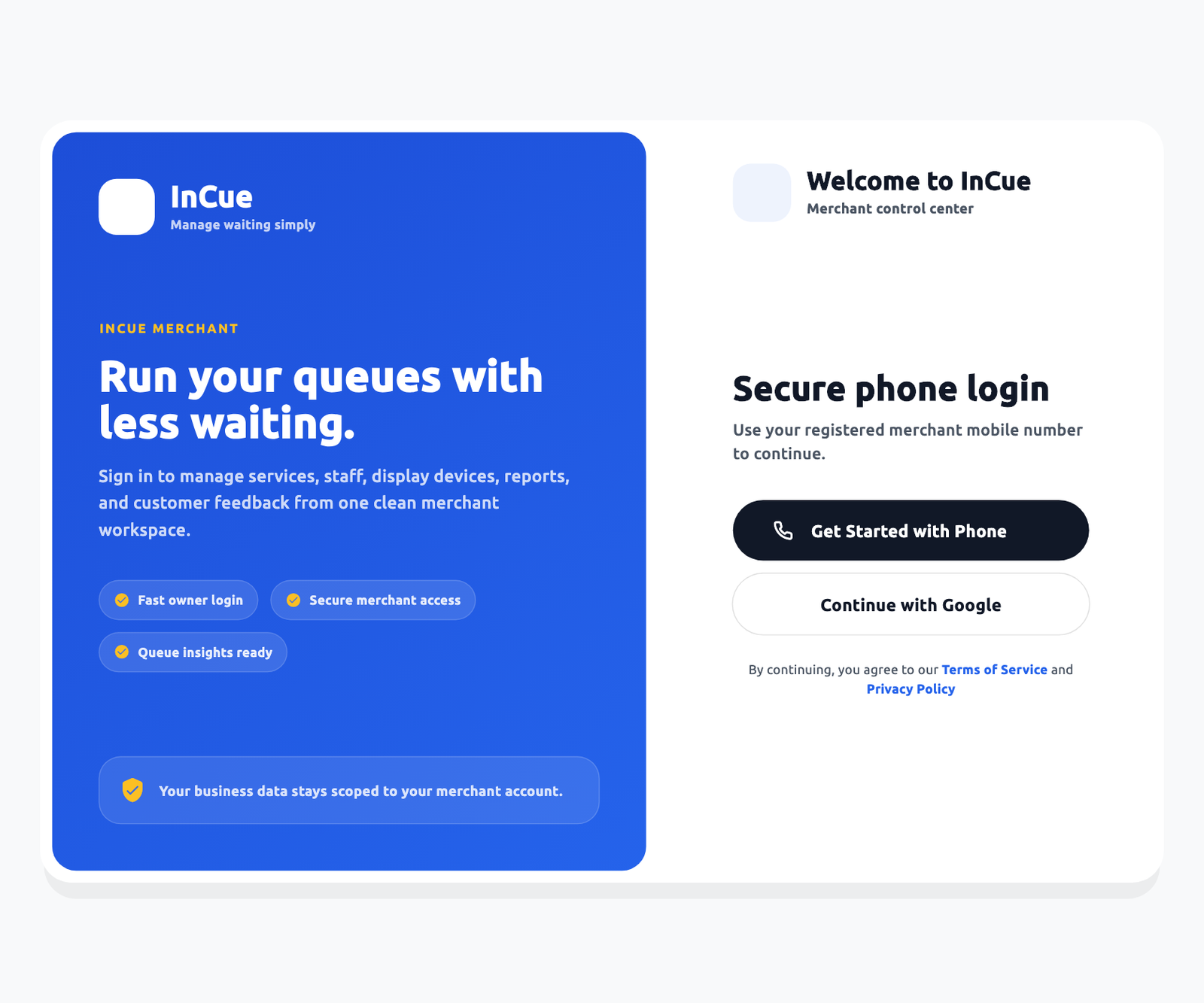 Owner sign-in. Actual application interface with synthetic example data.1.Owner login choices; use the registered identity.
Check: the shop name is yours and Subscription & Billing shows the expected active plan/service dates. Logging in does not itself activate a plan.
2. Confirm the business setup
- Open Account > Shop Profile > Edit Profile. Check shop name, owner, category/type and address.
- Use the actual premises location if you intend to require customers to be nearby. A postal PIN is not exact GPS.
- Open Account > Settings > Business Hours. Choose working days, opening/closing times and breaks. Save.
- Confirm Accept walk-ins is correct. Use a current connection and active account.
- Leave advanced automation off until you have tested the normal manual workflow.
Default new-model hours are 09:00-21:00 on all seven days. Your saved account can differ. Change them to your actual operation; do not assume defaults match your business.
3. Create one service and one reception user
Service: open Services and use the add control. Name the work clearly, for example Consultation. Avg time (min) means the usual minutes doing one customer's work from Start to finish, not their time waiting. If consultation normally takes ten minutes, enter 10, not a clock time or the doctor's whole shift. The starting form value 15 is only a default. A realistic duration helps Smart ETA estimate later turns; it does not auto-complete service when time runs out.
Base Price (₹): enter the ordinary fee, for example 200 for ₹200; use 0 only if genuinely free. Choose Prepaid for collection at token creation or Postpaid for collection after service. Zero collectible now on a Postpaid token does not mean no amount is due. Use Confirm & Save, reopen it and check a fresh token preview. Enter any emergency fee as the extra, not the total.
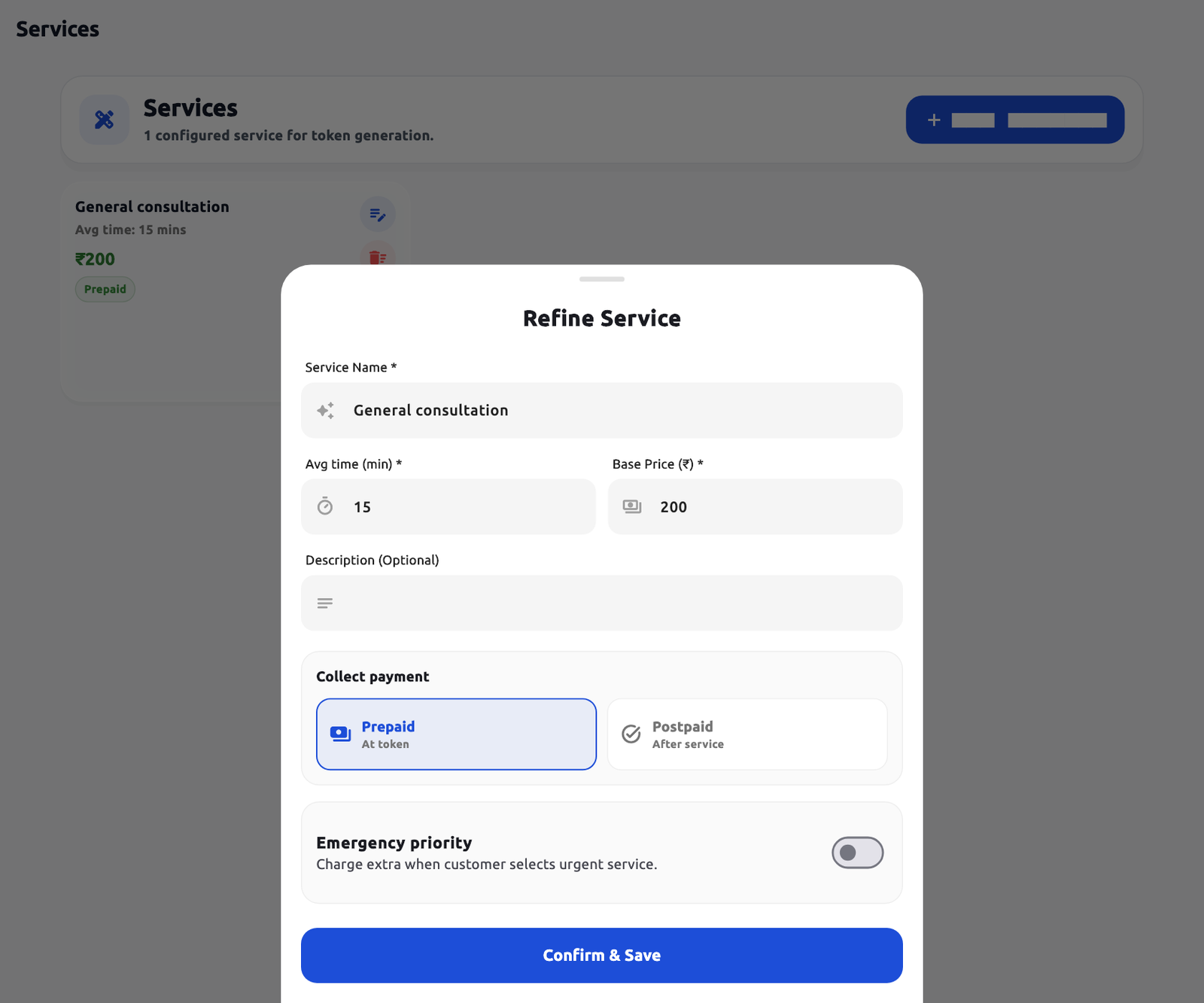 Service form. Actual application interface with synthetic example data.1.Service identity and expected minutes.2.Payment mode and optional priority charge.
Staff: open Staff > Add Staff. Enter their real authorized mobile and name. Choose Dashboard user for reception or Counter user for assigned-service work. Give Reports/Customer history only when needed. A Counter user needs at least one service and an appropriate counter name. Save and test their own OTP login.
Check: the service appears in a fresh token form and the staff member sees only the intended tools. Seat limits are plan/account dependent.
4. Optional inputs, QR policy and revisit benefit
Custom fields: Account > Settings > Token Form Fields > Custom token inputs > Manage > Add field. Choose label/type, Required/Active and form scopes. Press Save field, then Save fields on the outer editor. Only the owner changes definitions; staff/customers fill answers.
QR cap: Settings > QR tokens & revisits > Daily limit for online tokens. 0 means unlimited. A limit of 100 uses all issued tokens, including staff issues, to stop new public QR intake. Staff can continue beyond the cap under normal operational rules. Save changes.
Revisit: enable Free revisits only if it matches your policy. Default when enabled is 1 revisit within 7 days, counted from the original paid visit. Choose the offered day/count/basis values and save. Only matching earlier eligible services are waived; new services and emergency upgrades can remain payable. Cancellation does not automatically return the allowance.
Check: a fresh form shows the saved required fields and correctly calculated amount. Do not promise a free visit until its quote confirms it.
5. Issue and finish the first token
- In Queue Dashboard, press Walk-in.
- Enter the requested customer details and required custom answers. Select a service.
- Review Token Preview and Collectible, including any pending/waived amount. Press Generate once.
- Confirm the token appears in Waiting.
- Press CALL NEXT, review the offered call/counter choice and confirm. Check Called/Calling.
- Press Start when work starts. Check Serving.
- Press Complete after work and payment handling are correct. Check Completed.
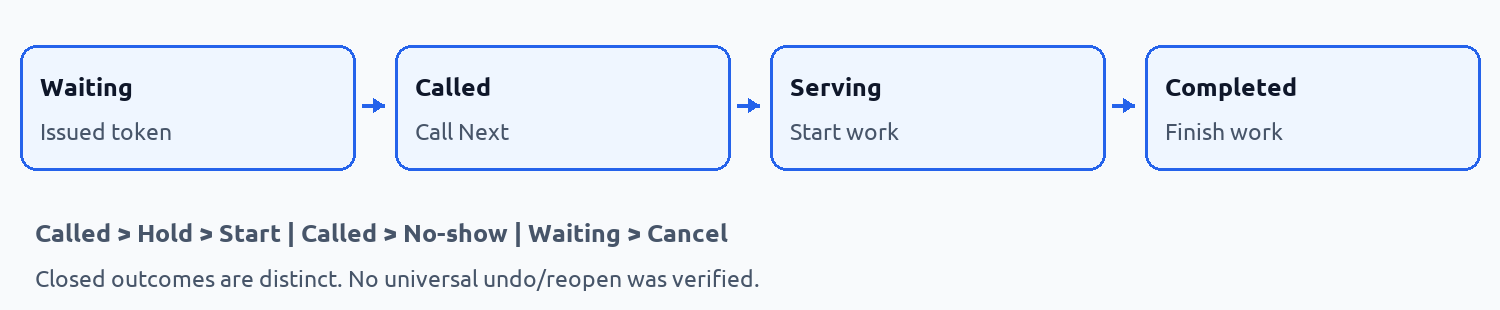 The visit lifecycle. Workflow illustration.
Use an agreed non-sensitive sample visit before public rollout. Do not create a real charge solely for a demonstration. Called is not Serving. Completed is not automatic proof of bank settlement. If an action times out, inspect the existing record before retrying.
Explain ETA to your team: a ten-minute service with earlier work ahead can mean a wait longer than ten minutes. Correct Start/Complete times, available service-compatible staff, lunch breaks and pauses all matter. The estimate is a range, not a promise of a precise turn. A changed estimate does not send a WhatsApp every time. Read the full Smart ETA lesson in Chapter 5 or online.
6. Connect the customer QR and TV
QR: Account > QR Assign. Scan/enter an InCue-issued QR ID and assign it. Open its poster/card and use Copy QR Link. Test that the correct shop opens on another phone. Print a clear version only after checking the link.
Customer flow: choose service, Continue, enter name/mobile and required fields, review terms/privacy and amount, then get the token or complete the offered payment. Save the tracking link. Adult self-service is for the person's own visit; reception handles children/represented visitors appropriately.
TV: open Display on the TV. Owner opens Account > Display Devices > Link Display, allows the camera on Scan TV QR Code and scans the QR on that TV. Confirm the right business. A manual code-entry field was not verified; use a supported merchant phone/app when the web browser cannot scan. Check available display seats.
Open Display Settings, choose layout/public fields/voice and save. At most two optional public details can be selected. Press remote OK/Enter/Select/Space or Enable sound where required. Check mute/volume and sound check. Call a sample token to test synchronization separately.
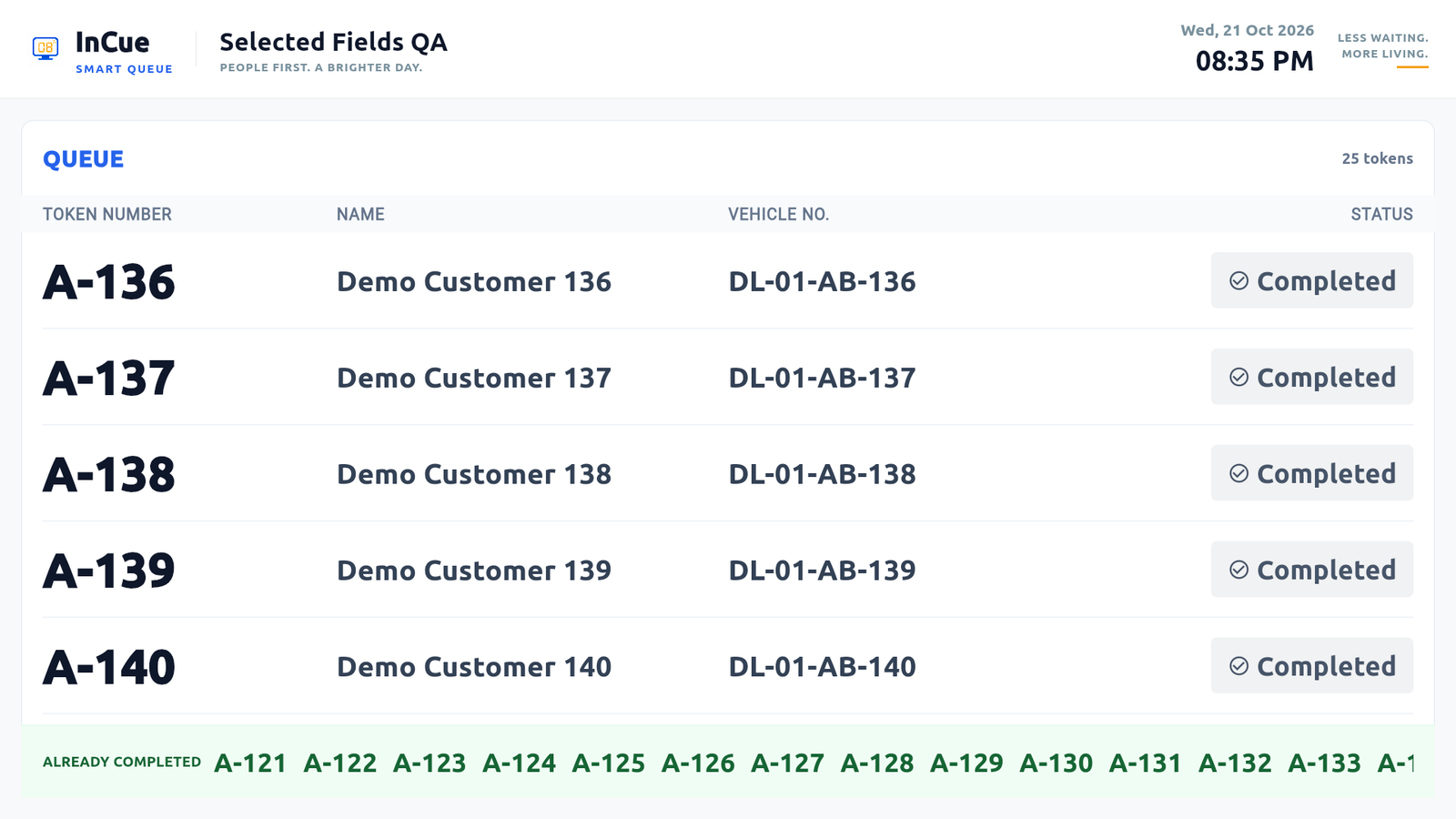 Ranked TV example. Actual application interface with synthetic example data.1.Latest five completions form the first group.2.Older completed numbers use the bottom strip.
7. Check the money and communication channels
- Subscription & Billing: active plan, included seats, service dates and correct invoice details.
- WhatsApp Wallet: optional prepaid balance. Default eligible token-flow debit is ₹1, separate from the subscription; appointment billing has its own charge class. Confirm current checkout/ledger rates.
- Online Payments: use only an approved supported gateway and your own secure credentials. A Test connection is not a live payment check.
- Payments that need you: investigate a confirmed payment without a token; do not collect twice. Mark refunded only after actually refunding through the provider as instructed.
Normal queue work can continue when WhatsApp is unavailable, subject to normal account permissions. A message failure does not prove token failure.
8. First-day sign-off
- Correct business, plan, hours, prices and staff permissions checked.
- One complete Walk-in > Call > Start > Complete journey acknowledged.
- QR tested on a second phone; required fields, terms and amounts correct.
- TV shows fresh state; audio tested on the actual device.
- Staff understand Hold, No-show, waiting-token cancellation and counter-transfer limits.
- Wallet/payment responsibilities are clear; no unresolved test charge or duplicate token.
- Shared-device logout and privacy practices explained.
If an action is missing, do not search for an invented reset button. Use the complete manual and the actual account permissions/version.
Help: support@incue.in | +91 7988919040 | Contact InCue. Send business, workspace, IST time, token/payment reference and a redacted error. Never send an OTP, password or gateway secret.