 InCue
InCueChapter 2 of 23 · Updated 22 October 2026
Sign in & first setup
On this page
Open the correct workspace
Owners use the Merchant app or Merchant web. Staff use Queue Dashboard. A TV opens InCue Display. Do not enter owner credentials on a public waiting-room screen.
First login: merchant
- Open Merchant web or the installed Merchant app.
- Continue with the registered merchant mobile number. Select the correct country code where the picker is offered.
- Request the one-time code. Open Verification Code and enter the six-digit code sent to that number.
- If needed, wait for Resend to become available, then request a new code once. Use the newest code.
- Complete the business onboarding form if the account has not completed setup.
- Confirm the business name in Home or Account > Shop Profile before changing settings.
Expected result: you reach your merchant workspace. A new sign-in alone does not prove that a paid plan, add-on or display seat is active.
No merchant password field or customer password-reset workflow was verified. Recover access to the registered phone or contact support. Account > Linked Accounts offers Link Google Account and Unlink Google Account; use Google only after it has been linked to the same merchant account. Google sign-in availability depends on the platform.
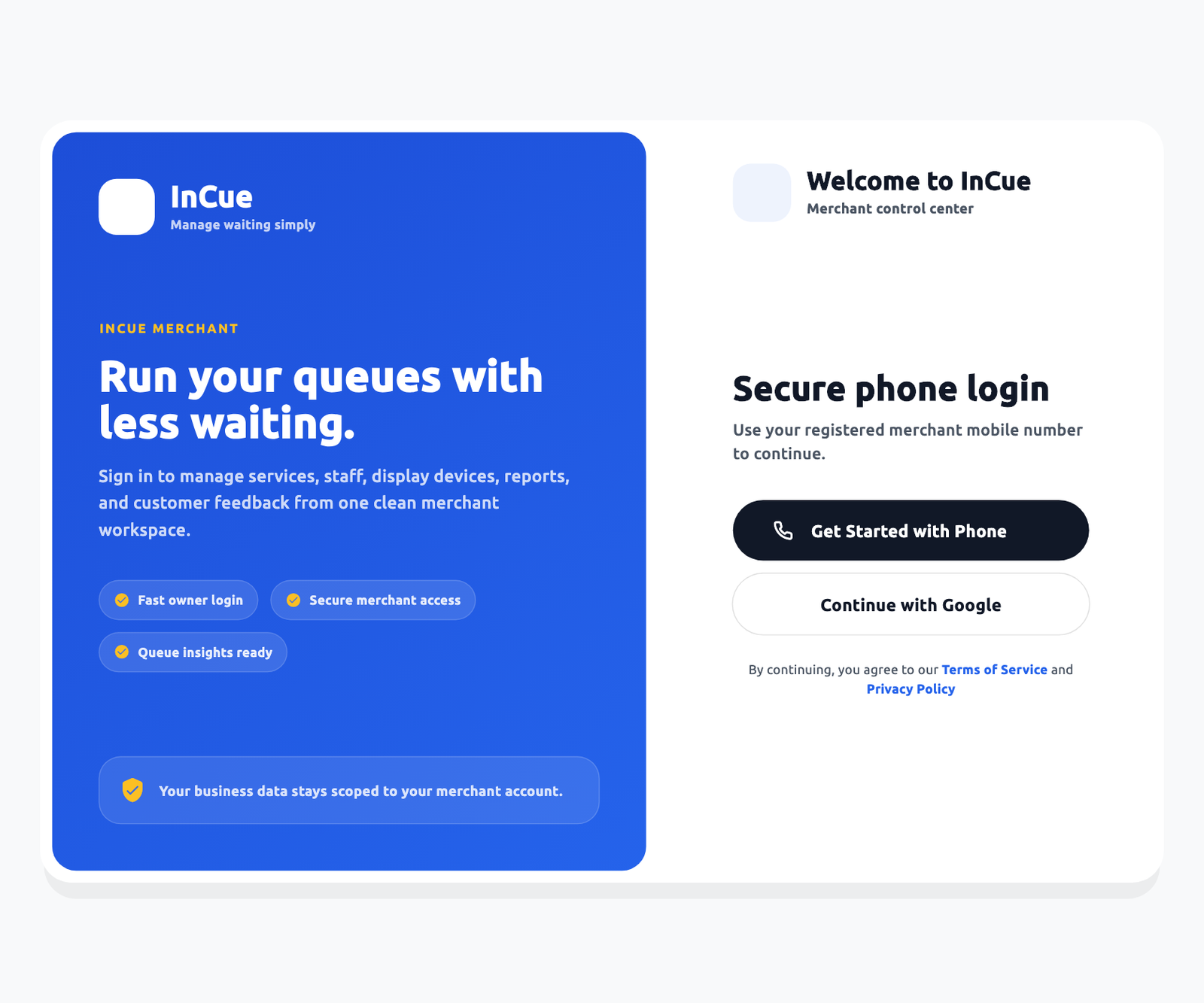 Merchant sign-in. Actual application interface with synthetic example data.1.Owner login choices; use the registered identity.
First login: staff
The owner must add the staff mobile number first. Open Queue Dashboard, request an OTP for that number and verify it. The server checks whether the account is active, linked, permitted to use Dashboard/Counter access and within the active account entitlement. One staff identity uses one active access session; a second login can invalidate the earlier device/session. A staff login does not become an owner login.
First 15 minutes checklist
- Minutes 0-3: sign in, confirm the correct shop and check Account > Subscription & Billing.
- Minutes 3-6: check Shop Profile, business hours and Accept walk-ins.
- Minutes 6-9: create one real service with the correct price, expected time and Prepaid/Postpaid mode.
- Minutes 9-12: add one reception user and test its OTP login and permissions.
- Minutes 12-15: issue a sample walk-in, call it, start it and complete it. Check the public display if already paired.
QR printing, payment-gateway approval and TV browser setup can take longer. Finish those before advertising them to customers. Never charge a real customer merely to test the system.